> For the complete documentation index, see [llms.txt](https://docs.finout.io/llms.txt). Markdown versions of documentation pages are available by appending `.md` to page URLs; this page is available as [Markdown](https://docs.finout.io/billing-integrations/cloud-providers/connect-to-azure.md).
# Connect to Azure
## Azure Integration Overview
Integrate Azure with Finout to generate comprehensive cost and usage reports tailored to your organization's needs. Configure Finout to create detailed reports using Azure data, either for specific subscriptions or across your entire organization. This integration allows for in-depth analysis and management of expenses, offering valuable insights into cost allocation and usage trends across your Azure infrastructure. See [Azure documentation](https://learn.microsoft.com/en-us/azure/cost-management-billing/costs/tutorial-improved-exports) to learn more about creating and managing cost management exports.
**Azure Configuration Workflow:**
1. [Create a Service Principal for Finout](#h_caeb06e4d5)
2. [Create the Billing Export](#h_b1296fde84)
3. [Grant Finout Read-Only Permission from the Export Storage](#h_3457a15897)
4. [Connect Azure Advisor to Finout](/billing-integrations/cloud-providers/connect-to-azure.md#h_81357dba78)
5. [Connect Azure Commitments to Finout](#h_81357dba78-1)
6. [Integrate Azure with Finout](#h_81357dba78-1)
## 1. Create a Service Principal for Finout
Integration with Azure is achieved using an [Azure service principal](https://learn.microsoft.com/en-us/azure/active-directory/fundamentals/service-accounts-principal).\
\
There are two options:\
a. [Create a service principle using the CLI.](#h_39705424de)
b. [Create a service principal using the Azure portal](#h_9306e184ac) and [set up an authentication](#h_d5c901358e).
#### a. Create a service principal using the CLI
1. From the CLI, type the following:
```json
az ad sp create-for-rbac -n "finout"
```
2. You will receive an output similar to the following:
```json
{
"appId": "3c666g0g6-8cb8-8b33-cba6-abc7676a8989",
"displayName": "finout",
"password": "789************************",
"tenant": "6666b777-ba88-44a9-a4aa-666ccb222a91"
}
```
{% hint style="warning" %}
**Important**: Save the following details to use in the Finout console (step 5):
* appId → Application (client) ID
* tenant → Directory (tenant) ID
* password → Application password (Client Secret
{% endhint %}
#### b. Create a service principal using the Azure portal
1. From your Azure portal, search for and select **Azure Active Directory**.
2. Select **App registrations**, then click **New registration.**
3. Name the application (For example, "Finout").
4. Leave the default values in the rest of the parameters and click **Register**.
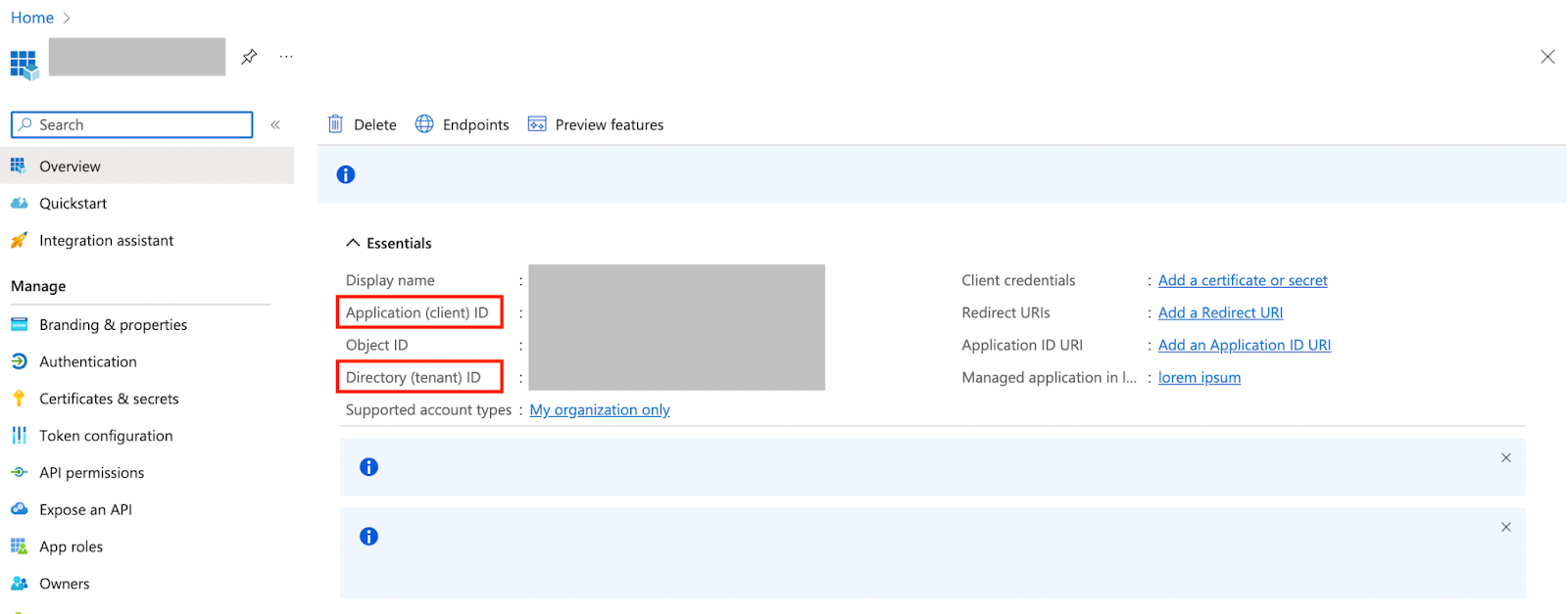
5. The **Overview** page provides two of the credentials required for the Finout console (step 4) the **Application (client) ID** and the **Directory (tenant) ID**.
Important: Save the following details to use in the Finout console (step 4):
appId → Application (client) ID
tenant → Directory (tenant) ID
#### b-2 Set up the authentication
For the Finout integration, use the **password-based authentication (application secret)** method by following these steps:\
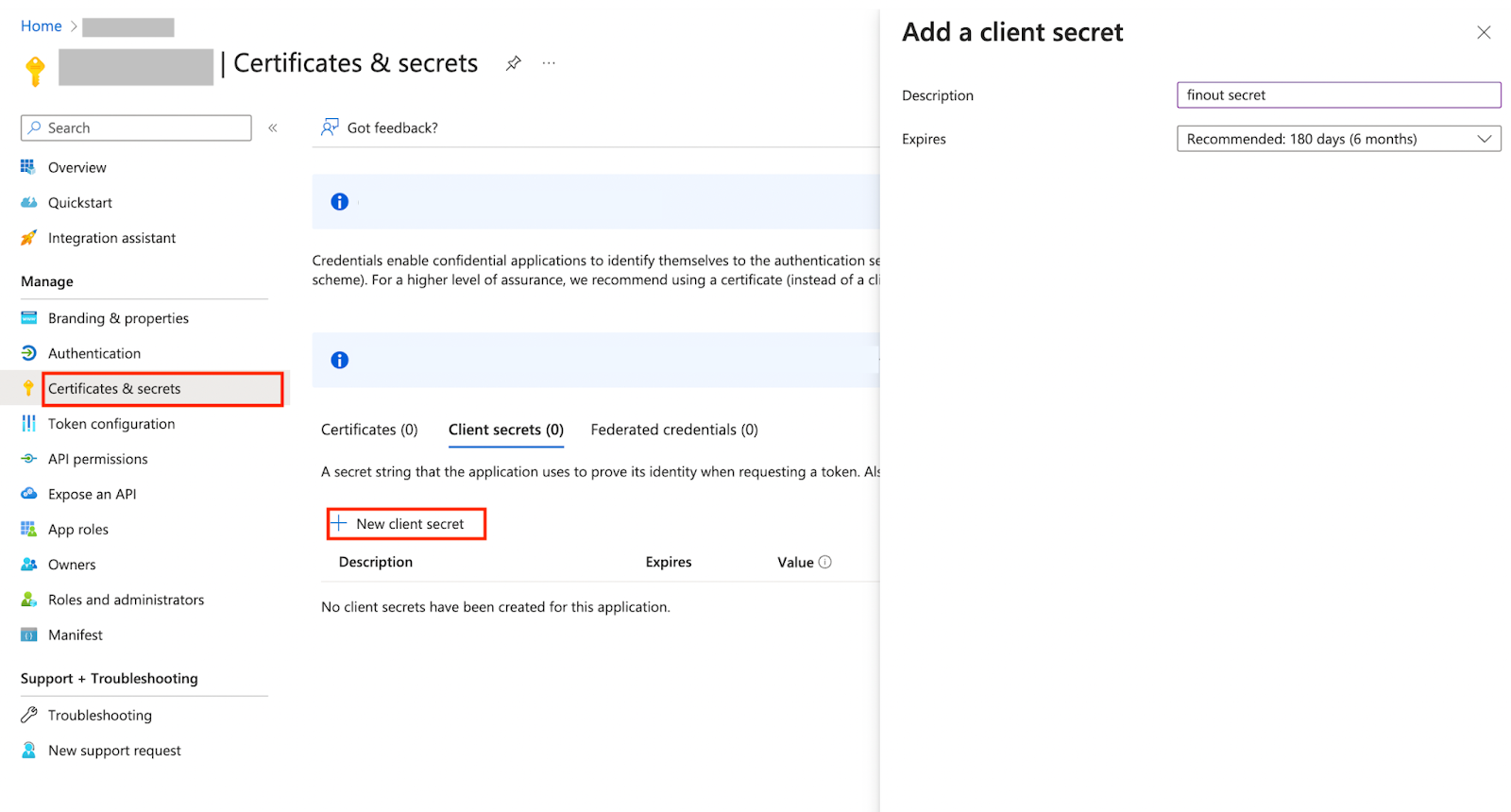
1. Select **Certificates & secrets** from the left-hand menu on the app registration page.
2. Click **+ New client secrets** to create a new client secret.
3. Select an expiration time frame, add a description, and then click **Add**.
Note: If the secret is set to expire, you must remember to renew the credentials and reconfigure it in the Finout console.
4. Copy the **Value** from the Client secret to the **Application secret** field in the Finout console (step 4).
## 2. Create the Billing Export
In this step, create the export for the billing scope and grant Finout read-only access to these export files.
{% hint style="warning" %}
**Important**: Ensure you're on the billing scope when performing the following step.\
To ensure you're on the billing scope, check the text on your cost management screen that states **Billing account.**
{% endhint %}
{% hint style="info" %}
**Note:** When creating an export for the billing scope, you can choose to configure Azure settings by **overwriting the same file** or by **generating a new file** **for each run**.
{% endhint %}
#### Create the report exports on the billing scope:
The reports must be exported twice, once for each of the following cost types:
1. Actual cost
2. Amortized cost
You should provide a different directory for both exports, but both exports must be exported to the same container.
**To create an export in your Azure portal:**
1. In Azure, navigate to **Cost Management.**
2. Click **Exports** in the left-hand menu.
3. From the **Export** screen, click **+ Create**.\
The **New export** page appears.
4. Click **Cost and Usage** (actual or amortized).
Note: The reports must be exported twice, once for each cost type. You should provide a different directory for both exports, but both exports must be exported to the same container.
\
You are brought to the **Datasets** tab.
5. Add the **Export Profile** name and click **Next**.\
You are brought to the **Destination** tab.
Important: - Ensure that the Format is CSV. - Ensure that the Compression type is None.
\
Fill in the details required on the destination page.
Note: Save the following details to add to Finout (step 4): -Storage Account
-Container
-Actual Cost Directory and Export Name
-Amortized Cost Directory and Export Name
6. Click **Next**.\
You are brought to the **Review and Create** tab.
7. Review the summary and click **Create**.
8. After the export is created, select it from the export page and click **Run now**.
## 3. Grant Finout Read-Only Permission from the Export Storage
Grant read-only permission by using Azure CLI or the Azure portal.
#### Grant permissions using Azure CLI
* Type the following command in your CLI and fill in the parameters according to the role and storage details:
```
az role assignment create --assignee --role "Storage Blob Data Reader" --scope /subscriptions//resourceGroups//providers/Microsoft.Storage/storageAccounts//blobServices/default/containers/
```
#### Grant permissions using the Azure portal
1. From your **Storage account** page, click **Containers** and select the export container.
2. Select **Access control** (IAM).
3. Click **+Add** and then click **Add role assignment**.
4. Search for **Storage blob data reader**, select it, and then click **Next**.
5. Click + **Select members** and find the Finout service principal.
6. Select the Finout service principal and click **Select**.
7. Click **Review + Assign**.
{% hint style="info" %}
This step is currently in Alpha.
{% endhint %}
## **4. Connect Azure Advisor to Finout**
Connect a subscription scope in two ways: Use the [**Azure Portal**](#using-the-azure-portal) or the [**Azure CLI**](#using-azure-cli)**.**
#### **Using the Azure Portal:**
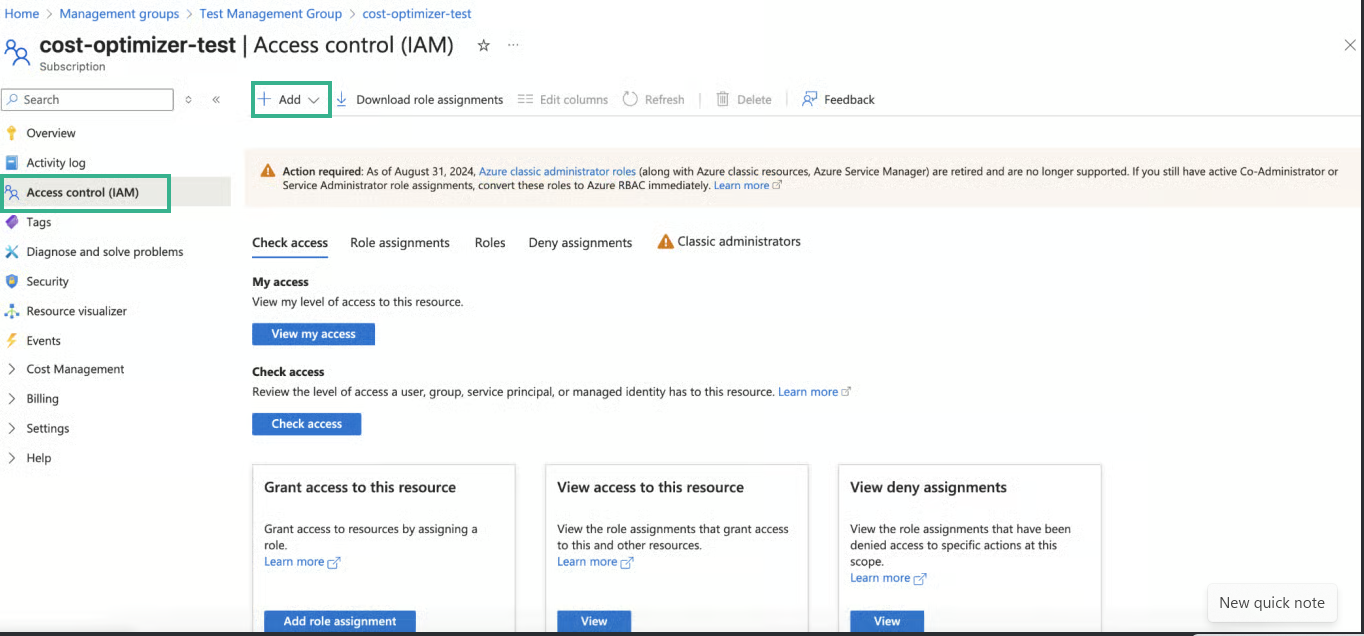
1. In your Azure portal, go to **Subscriptions** and then select your subscription.
2. Click **Access control (IAM)**, **+ Add**, then **Add role assignment**.
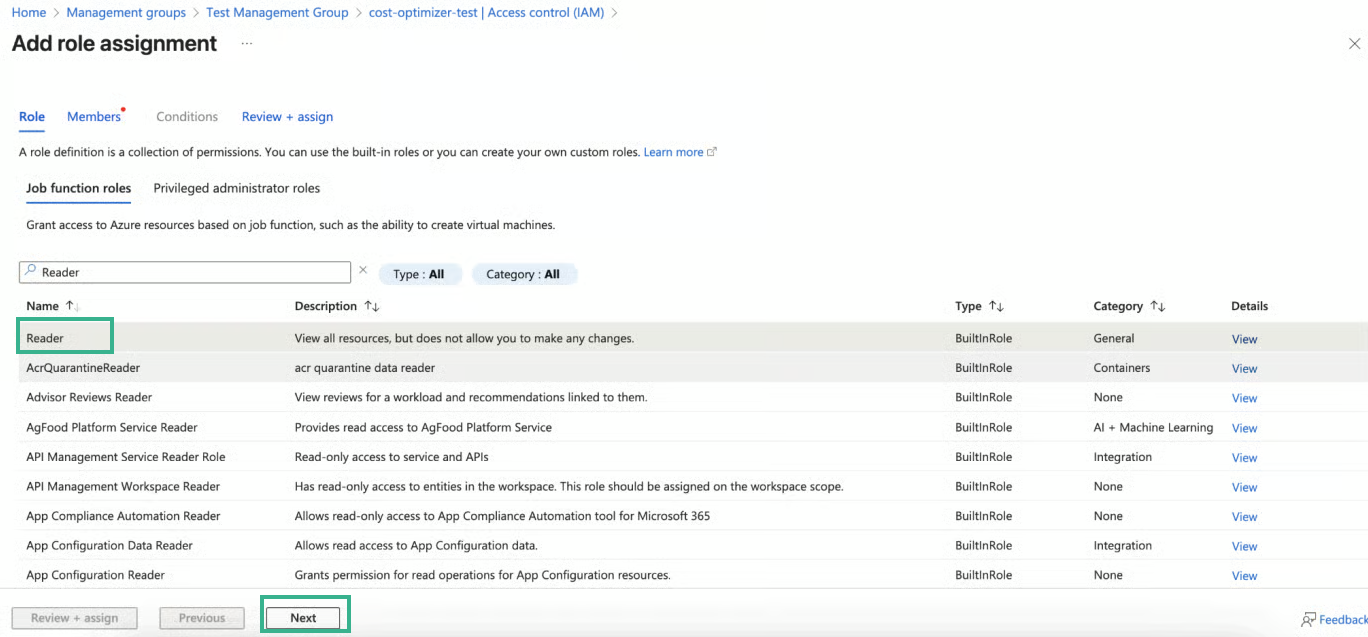
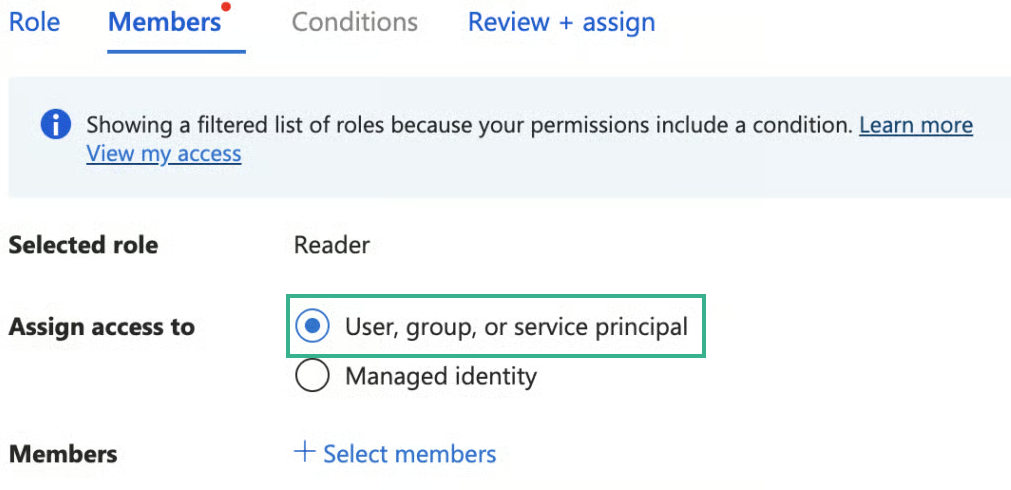
3. Choose **Reader** and click **Next**.
4. Under **Members**, select your **Finout service principal**.
5. Click **Review + assign**.
#### Using Azure CLI:
1. Copy this command:
```json
az role assignment create --assignee --role Reader
--scope /subscriptions/
```
2. Replace placeholders
\
● Replace \ with your Finout Service Principal App ID.
\
● Replace \ with the ID of the Azure subscription you want to
\
connect.
3. Run this command separately for every subscription you want
Finout to access.
## 5. Connect Azure Commitments to Finout
To bring your Azure Savings Plans and Reservations data into Finout, assign two additional read-only roles to the **same** Finout service principal you used in the previous steps.
Both roles are assigned tenant-wide. Assign each one separately, using either the Azure portal or the Azure CLI.
{% hint style="info" %}
**Note**: Use the same service principal that was configured for the Azure billing and Azure Advisor integrations. The same one is used for both the Savings Plans and Reservations role assignments.
{% endhint %}
#### a. Assign the Savings Plan Reader role
Assign the **Savings Plan Reader** role at the **Microsoft.BillingBenefits** scope (tenant-wide).
**Using the Azure Portal:**
1. In the Azure portal search bar, search for and select **Savings Plans**.

2. Select **Role assignments** from the left-hand menu.
3. In **Access control (IAM)**, click **+ Add**, then **Add role assignment**.

4. Search for the **Savings Plan Reader** role, select it, and click **Next**.

5. Under **Members**, click **+ Select members**, find your **Finout service principal**, and select it.
6. Click **Review + assign**.
**Using Azure CLI:**
Run the following command, replacing `` with your Finout Service Principal Application (client) ID:
```json
az role assignment create --assignee --role "Savings Plan Reader"
--scope "/providers/Microsoft.BillingBenefits"
```
{% hint style="info" %}
**Note**: The **Savings Plan Reader** role is not listed in the standard Azure built-in roles reference, but it is a valid, supported role within Azure RBAC.
{% endhint %}
#### b. Assign the Reservations Reader role
Assign the **Reservations Reader** role at the **Microsoft.Capacity** scope (tenant-wide).
**Using the Azure Portal:**
1. In the Azure portal search bar, search for and select **Reservations**.
2. Select **Role assignments** from the left-hand menu.
3. In **Access control (IAM)**, click **+ Add**, then **Add role assignment**.
4. Search for the **Reservations Reader** role, select it, and click **Next**.

5. Under **Members**, click **+ Select members**, find your **Finout service principal**, and select it.
6. Click **Review + assign**.
**Using Azure CLI:**
Run the following command, replacing `` with your Finout Service Principal Application (client) ID:
```json
az role assignment create --assignee --role "Reservations Reader"
--scope "/providers/Microsoft.Capacity"
```
## 6. Integrate Azure with Finout
1. Navigate to **Settings > Cost Centers** and click **Add cost center**.\
The **Connect Accounts** window appears.
2. In Azure, click **Connect Now**.\
The Azure integration window appears.
3. Add the details saved from [step 1](#h_caeb06e4d5) and click **Next**.\
You are brought to the **Create the billing export** step.
4. Add the details saved from [step 2](#h_b1296fde84) and click **Next**.
{% hint style="warning" %}
**Important**: To successfully finish the Azure integration with Finout, ensure the export files exist in the given container.
{% endhint %}
You are brought to the **Connect Azure Advisor Recommendations** step.
5. Mark **I've granted the reader role to the Finout Service Principal** and click **Next**. You are brought to the **Connect Azure Commitments** step.
6. After assigning both roles (see [step 5](#h_81357dba78-1)), select **I've granted the Savings Plan Reader and Reservations Reader roles to the Finout Service Principal**, then click **Close**.\
Your cost center has been created. You will receive an email notification once the data is retrieved and the setup is complete.
## Historical Backfill Export
Finout supports **two methods** for backfilling historical Azure cost and usage data:
**1.** **Standard Backfill via Blob Storage (Recommended)**\
\
This is the default and preferred method. Finout accesses your Azure Blob Storage using the permissions granted during Cost Center onboarding. From there, it pulls historical amortized and actual cost and usage files—even for periods prior to the Cost Center's integration—ensuring a complete and continuous cost history.
If you want Finout to backfill data for a specific period, contact Finout support and specify the desired date range in complete calendar months. Support will then access the container and import the data into your account.
{% hint style="info" %}
**Note**: You must ask Finout support to fetch this as it is not fetched automatically.
{% endhint %}
**2.Alternative: Manual One-Time Export**
If historical files are **not available** in your Blob Storage, you can generate a **Finout-supported manual Azure export** using Azure’s Cost and Usage Export feature.\
This one-time export should include amortized and/or actual cost data and must be uploaded to the same Blob Storage Finout has access to. Once uploaded, Finout will automatically detect the files, fetch the data, and ingest it into your account for the desired backfill period.
This manual method should be used **only when the standard Blob Storage backfill is not possible**.
{% hint style="info" %}
**Prerequisite**: \
You must have one of the following Azure permissions:
* Owner/Contributor role
* A custom role with:
* Microsoft.Authorization/roleAssignments/write
* Microsoft.Authorization/permissions/read
{% endhint %}
1. **Open the Azure Portal**\
Go to your [Azure Portal](https://portal.azure.com/) and navigate to **Cost Management and Billing**.
2. **Navigate to Exports**:
1. Select the relevant **billing scope.**
2. In the left sidebar, click **Exports.**
3. Click **Create New Export.**
4. Choose **Cost and usage (actual + amortized) export.**
3. **Create Actual and Amortized Exports**
Note: You will need to create two separate exports:
One for Actual Cost and Usage
One for Amortized Cost and Usage
1. Choose an **Export Name / Prefix.**
2. Edit the **Export information**:
1. Choose a **Data Type**
2. Add an **Export Name**
3. Choose a **Domain version**
4. **Frequency**: One-time
5. **Time Period**: A full calendar month
Important: Azure allows exporting only one month at a time. To export additional months, repeat the process.
6. Add an **Export description**
4. **Set Destination**
1. **Storage Type**: Azure Blob Storage
2. **Destination and storage**: Use existing
3. Enter your **Subscription** and **Storage account**.
4. **Container**: Select an existing container in your Azure account — this must be the same one you granted Finout access to during the Azure Cost Center onboarding. This container stores your billing data.
5. **Directory**: make sure to export the actual file and the amortized file into **different** directories.
6. **Format**: CSV
7. **Compression type**: Gzip
8. Enable **Overwrite data**
5. **Review and Create**
After creating both exports, ensure both actual and amortized appear in the export list.
6. Run the **Export.**
Note: You will need to run two separate exports:
One for Actual Cost and Usage
One for Amortized Cost and Usage
1. In Exports, click  on the right side of each export.\
\

2. Select **Run now** and choose the relevant month.
7. **Locate and Share Files**:\
Once complete, both files will be available in the Blob Storage container you specified. Contact Finout support and they will then access the container and import the data into your account.
(Optional) Create the same export for additional months:
1. In Exports, click  on the right side of each export.\

2. Click **Export for selected dates**, and configure another full calendar month.
3. Click **Execute** and then **Run the exports**.
## FAQs
* **What does the Azure Advisor integration in CostGuard do?**\
It brings Azure’s native cost optimization recommendations directly into CostGuard. This allows you to review and act on Azure insights side-by-side with recommendations from other providers within a unified interface, eliminating the need to switch between multiple tools or dashboards.
* **What’s required to enable Azure Advisor?**\
Complete the Azure onboarding to authorize Finout’s access to Azure Advisor. That’s the only prerequisite. To enable Azure Advisor integration in CostGuard, you must complete the Azure onboarding process, which authorizes Finout’s access to Azure Advisor. This includes following the step-by-step instructions from the [Azure onboarding documentation](/billing-integrations/cloud-providers/connect-to-azure.md) to configure the connection in your Azure Portal or via the Azure CLI. Once onboarding is finalized, CostGuard will automatically begin pulling Azure Advisor recommendations.
* **When will I see the recommendations?**\
Once onboarding is complete, Azure Advisor recommendations will appear in CostGuard on the following scheduled scan (typically the following day). It will continue to update automatically and appear alongside your other provider recommendations.
* **Can I use a custom role limited only to Azure Advisor permissions for the Finout integration?**
Yes. You can use a **read-only custom role** scoped specifically to Azure Advisor.
To allow Finout to read Azure Advisor recommendations, the following action is sufficient:
```
Microsoft.Advisor/recommendations/read
```
Assign this role to the service principal used by Finout for the Azure Advisor integration.
* **Can I assign the role at the Management Group level instead of per subscription?**
Yes. You can assign either the **Reader** role or your Azure Advisor–scoped **custom role** at the **Management Group** level.
This lets Finout access Azure Advisor data for all subscriptions under that Management Group. However, make sure that the **same subscriptions are also onboarded to Finout billing**. Otherwise, you may see Azure Advisor recommendations for resources that do **not** have matching billing data in Finout, which can limit cost insights.
* **Will Finout automatically discover all subscriptions under the Management Group, including future ones?**
Yes. When you assign the role at the **Management Group** level, Finout will automatically discover:
* All **current** subscriptions under that Management Group
* Any **future** subscriptions added to that Management Group
As long as those subscriptions are also connected to Finout billing, their Azure Advisor recommendations will be available in Finout.
* **Can I use certificate-based authentication instead of client secrets?**
No. Finout **currently supports client secrets only** for authenticating the Azure integration.
You must configure the service principal with a client secret; certificate-based authentication is not currently supported.
---
# Agent Instructions
This documentation is published with GitBook. GitBook is the documentation platform designed so that both humans and AI agents can read, navigate, and reason over technical content effectively. Learn more at gitbook.com.
## Querying This Documentation
If you need additional information that is not directly available in this page, you can query the documentation by asking a question.
Perform an HTTP GET request on the following URL with the `ask` and `goal` query parameters:
```
GET https://docs.finout.io/billing-integrations/cloud-providers/connect-to-azure.md?ask=&goal=
```
`ask` is the immediate question: it should be specific, self-contained, and written in natural language.
`goal` is what the user is ultimately trying to achieve, the reason they need the answer. Sharing it helps GitBook give you a better, more relevant answer. A goal is most helpful when it describes the outcome the user wants rather than restating the question. For example, with `ask=how do I create an API token`, a goal like `automate deployments from our CI pipeline` lets GitBook tailor the answer to that use case.
The response will contain a direct answer to the question and relevant excerpts and sources from the documentation.
Use this mechanism when the answer is not explicitly present in the current page, you need clarification or additional context, or you want to retrieve related documentation sections.



 2. Select **Role assignments** from the left-hand menu.
3. In **Access control (IAM)**, click **+ Add**, then **Add role assignment**.
4. Search for the **Reservations Reader** role, select it, and click **Next**.

5. Under **Members**, click **+ Select members**, find your **Finout service principal**, and select it.
6. Click **Review + assign**.
**Using Azure CLI:**
Run the following command, replacing `
2. Select **Role assignments** from the left-hand menu.
3. In **Access control (IAM)**, click **+ Add**, then **Add role assignment**.
4. Search for the **Reservations Reader** role, select it, and click **Next**.

5. Under **Members**, click **+ Select members**, find your **Finout service principal**, and select it.
6. Click **Review + assign**.
**Using Azure CLI:**
Run the following command, replacing `


