> For the complete documentation index, see [llms.txt](https://docs.finout.io/llms.txt). Markdown versions of documentation pages are available by appending `.md` to page URLs; this page is available as [Markdown](https://docs.finout.io/billing-integrations/cloud-providers/connect-to-gcp.md).
# Connect to GCP
## GCP Integration Overview
Connecting Google Cloud Platform (GCP) to Finout enables seamless tracking and monitoring of your cloud expenses. By integrating GCP, Finout provides detailed insights into your usage, allowing you to visualize costs, optimize spending, and manage budgets across your GCP resources. The connection process involves securely linking your GCP billing account to Finout for real-time cost analysis.
**GCP Configuration Workflow:**
1. [Billing Export from GCP](#h_f20fd69ab4)
2. [Granting Finout Access to GCP](#h_3d95d5002b)
3. [Connect GCP to Finout](#id-3.-connect-gcp-to-finout)
## 1. Billing Export from GCP
{% hint style="warning" %}
**Important**: Skip this step if GCP detailed billing has already been activated.
{% endhint %}
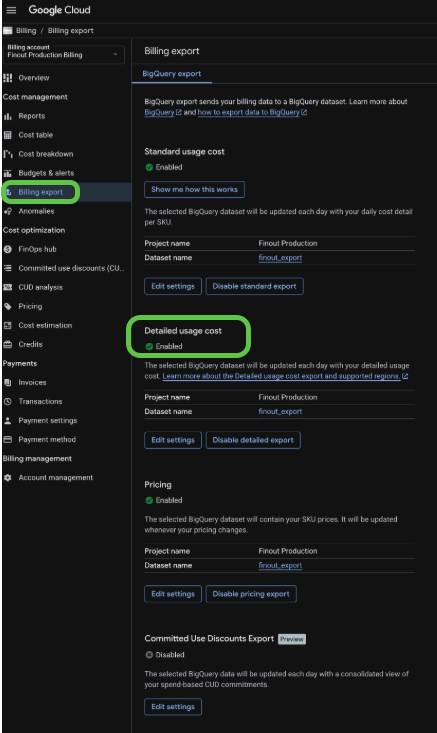
1. Log in to your Google Cloud account and select **Billing**.
2. Choose **Billing export**.
3. Make sure that the **Detailed usage cost** is enabled.
{% hint style="info" %}
**Note**: Enabling Detailed usage cost is a one-time action for the entire billing account. This setting applies to all projects under the billing account, so there is no need to enable it individually for each project.
{% endhint %}
## 2. Granting Finout Access to GCP
To connect GCP, Finout requires minimal permission to BigQuery in the project that is tied to your billing. To identify that project, check your billing page to see the connected project.
Perform the following steps after selecting the correct project:
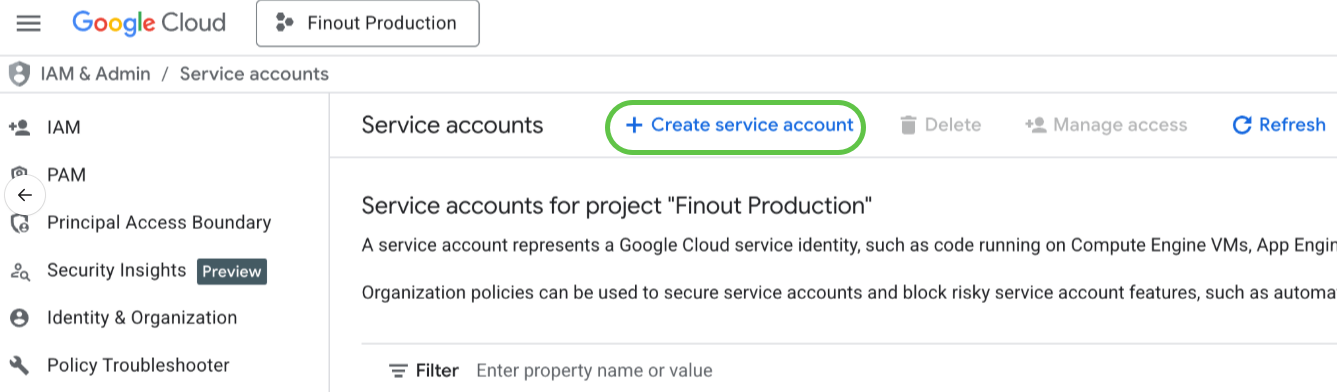
1. In **Service Accounts**, click **Create service account.**
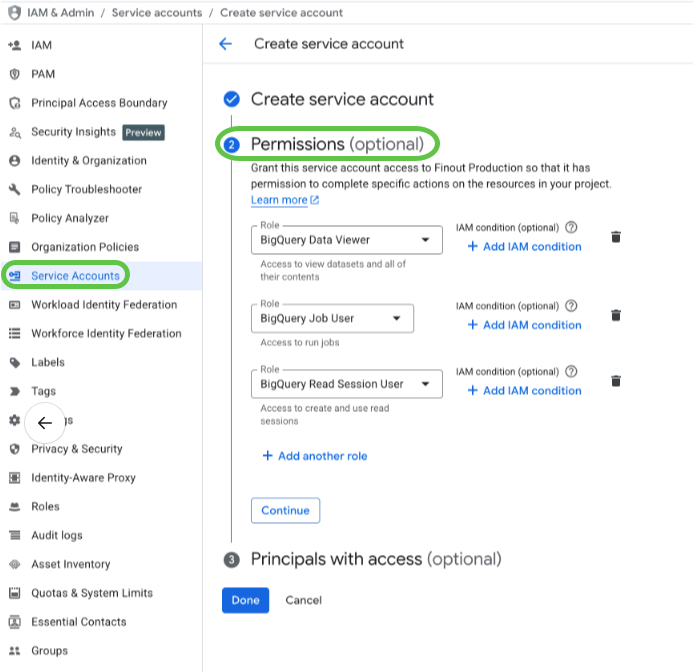
1. Configure these three roles:
`BigQuery Data Viewer BigQuery Job User BigQuery Read Session User`
{% hint style="info" %}
**Note**: Every role assigned to Finout’s service account by the customer can be restricted to a specific project, dataset, table, or other resource, ensuring access is limited to only the necessary tables.\
\
**To add a specific condition to a role:**\
1\. Click **Add condition**.\
The condition builder appears.\
2\. Choose a **key name**.\
3\. Apply the following format to the table for which you want to grant permissions:\
`projects//datasets//tables/`\
For all format types, see [GCP documentation](https://cloud.google.com/iam/docs/conditions-resource-attributes?_gl=1*debr52*_ga*MTgwMzUzOTQyNi4xNzM4MjQ1OTk3*_ga_WH2QY8WWF5*MTczODc2NzUwMy44LjEuMTczODc2NzgyNy40OC4wLjA.#resource-name).
{% endhint %}
3. Leave section 3 blank and click **Done**.
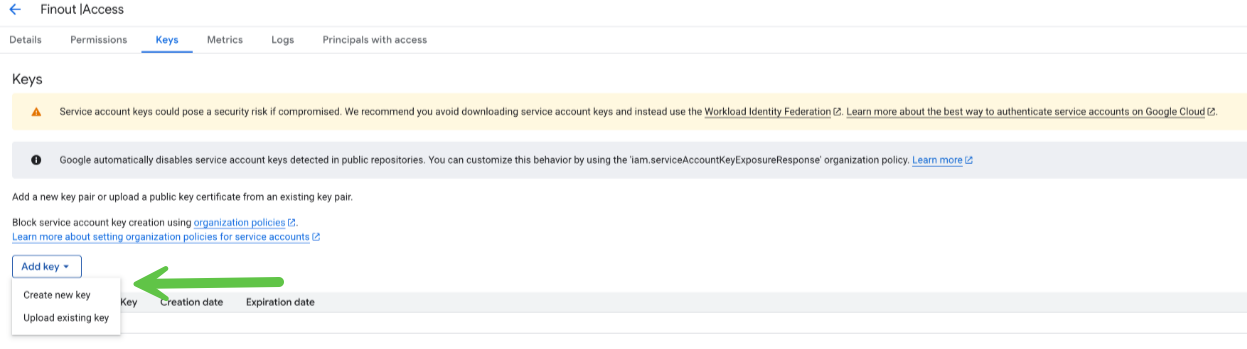
4. Back in the menu, click the **Keys** tab.
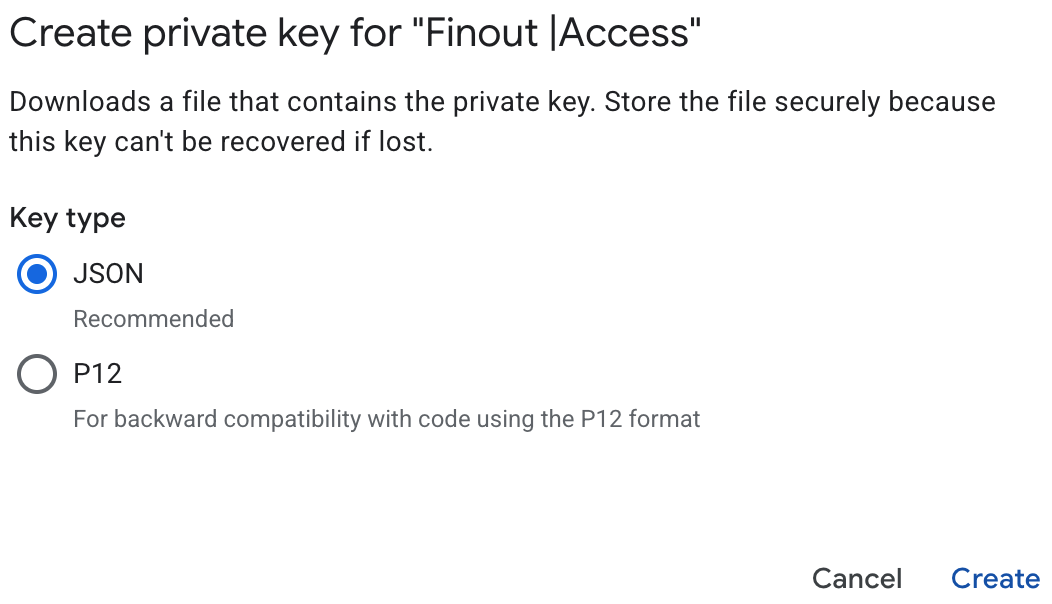
5. Click **Add Key** and then **Create New Key**.
6. Select JSON and click **Create**.\
The private key is created.
### (Optional) Surface the Billing Account Name
By default, Finout identifies your GCP billing accounts by their **Billing Account ID** — a non-human-readable identifier such as `012345-67890A-BCDEF0`. If you manage more than one billing account, you can grant Finout one additional read-only role so the human-readable **Billing Account Name** is available as a filter and group-by dimension alongside the ID.
You can do this during your initial GCP setup, or add it later to a GCP cost center that's already connected — the steps are identical.
This step is optional:
* **If you grant it**, the Billing Account Name becomes available as a filter and group-by dimension in your GCP cost data.
* **If you skip it**, GCP onboarding works exactly the same — you continue to see the Billing Account ID, you just won't see the name.
{% hint style="info" %}
**Note**: The Billing Account Name is read from GCP's Cloud Billing API, not the BigQuery billing export. The export does not include the display name, so this role is the only way for Finout to read it.
{% endhint %}
The Billing Account Name is read using the **Billing Account Viewer** role (`roles/billing.viewer`). The three BigQuery roles above are granted on the **project** tied to your billing; this role is added to the **same Finout service account** one level up, at the **organization** scope. You don't need a new key or a new service account — you add the role to the principal you already created.
To enable it:
1. In the Google Cloud console, go to **IAM & Admin**.
2. Using the resource selector at the top left, switch the scope to your **Organization**.
3. Locate the **Finout service account** (shown as a `…iam.gserviceaccount.com` principal in the list) and click **Edit principal**.
4. Click **Add another role**.
5. Select the **Billing Account Viewer** role (`roles/billing.viewer`).
6. Click **Save**.
Once granted, the **Billing Account Name** becomes available as a filter and group-by dimension in your GCP cost data on the next data refresh.
## 3. Connect GCP to Finout
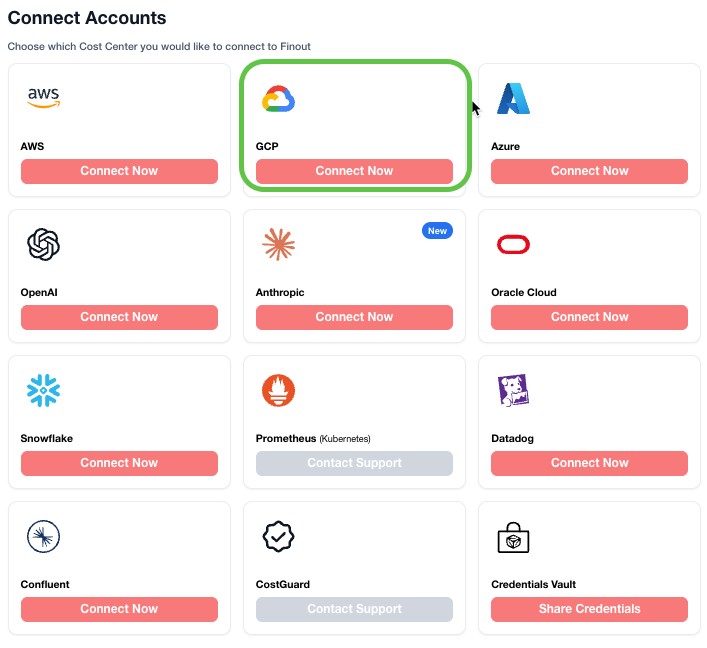
1. Navigate to **Settings > Cost Centers** and click **Add cost center**.\
The **Connect Accounts** window appears.
2. Under GCP click Connect Now.
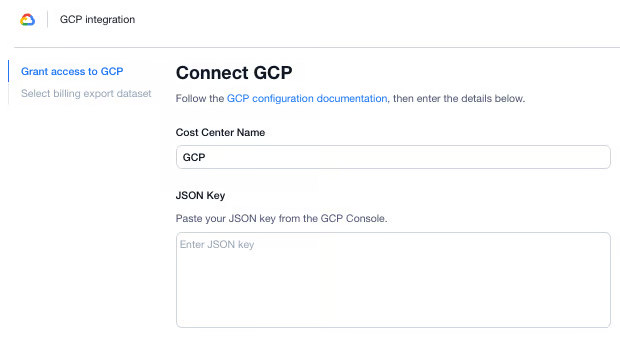
3. Enter a **Cost Center Name** and add the **JSON key** and click **Next.**\
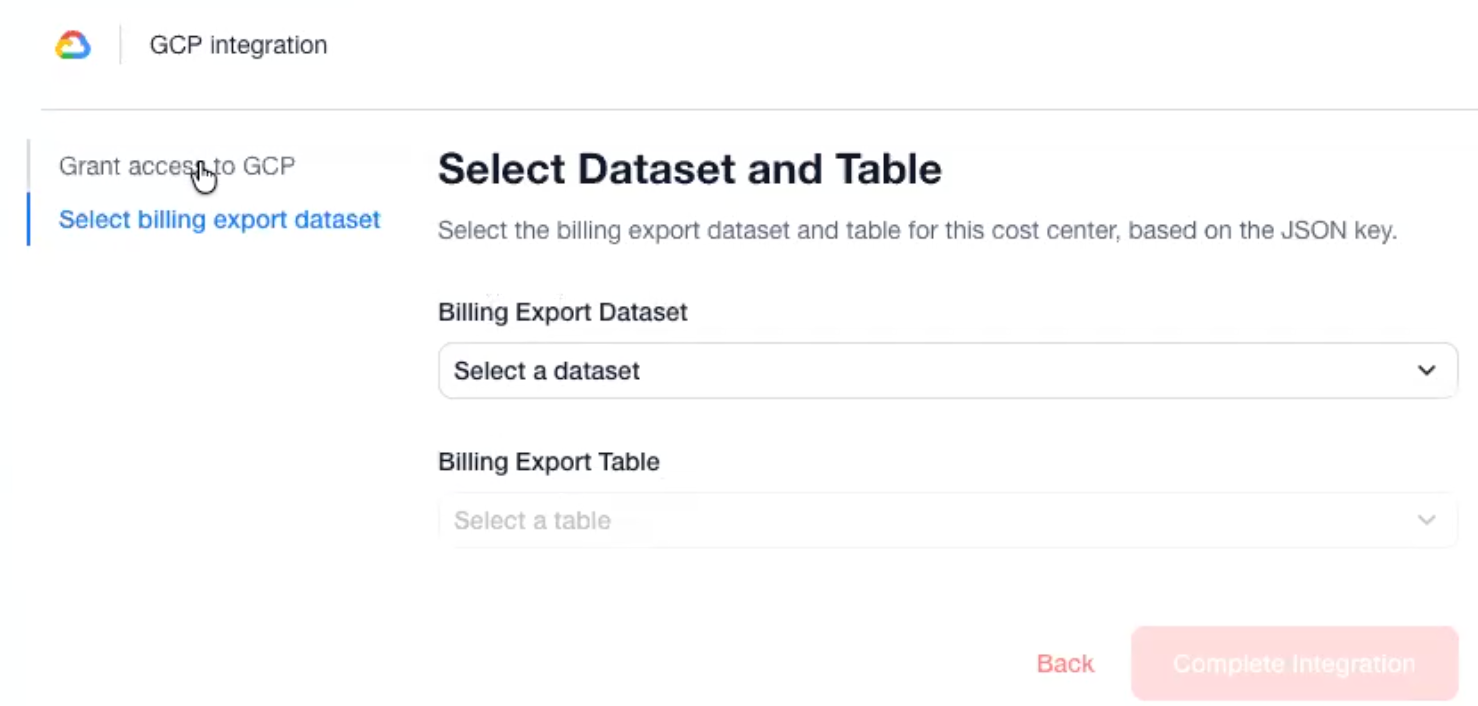
You are brought to the **Select billing export dataset** step**.**
4. Select an **Export Dataset**, **Export Table**, and then click **Complete Integration**.\
The Integration is completed
## GCP Credit Types
GCP credit types enable users to categorize and display different types of credits. This addition, which includes the ability to group and filter GCP credit types and show original costs, is an effective tool for cloud expense management. It aims to deliver clarity and ease in financial analysis, empowering users with a more transparent view of their GCP billing and spending patterns.
This feature allows users to easily identify and analyze different types of GCP credits impacting their costs. It simplifies understanding how these credits play a role in overall expense management.
**Common GCP credit types**
* Sustained use discounts: For continuous resource usage.
* Committed use discounts: For consistent resource usage over time.
* Free tier usage: Covering costs under the GCP Free Tier.
* Promotional credits: Offered during promotions or special events.
* Research credits: Provided for academic or research-related purposes.
**Cost without Credits:** \
When no credits are applied to a cost, the **Credit Types** field displays **Cost Without Credits**, a Finout-calculated value representing the **original cost before any credits are applied**. \
This distinction ensures clarity in cost analysis by helping you separate discounted from non-discounted expenses. By showing the original cost before credits, Finout allows you to understand your true usage spend without the influence of promotions or discounts, giving you a more accurate view of overall spending and credit effectiveness.
{% hint style="info" %}
**Note**: Currently, the Cost without credits metric also **includes CUD (Committed Use Discounts).**
{% endhint %}
* **Key feature functionalities:**
* Grouping by Credit Types: Offers an aggregated view of how different credits influence your total cloud expenses.
* Filtering by Credit Types: Allows for targeted analysis of specific credit types, offering deeper financial insights.
{% hint style="info" %}
**Note**: As of **August 15th, 2025**, this field (Cost without Credits) includes the newly introduced **GCP Committed Use Discount (CUD) credits**.
{% endhint %}
## FAQs
**How can I grant Finout access to my GCP billing table through a custom project instead of the primary project?**
This setup is not available through the app’s onboarding process. If you need Finout to access your billing table through a custom project for security reasons, contact Finout support at [**support@finout.io**](mailto:support@finout.io) and provide the following details:
* **Project Name**
* **Dataset**
* **GCP Table**
{% hint style="info" %}
**Note:** Ensure the table includes the full Google billing table structure, including the partitioned time column.
{% endhint %}
---
# Agent Instructions
This documentation is published with GitBook. GitBook is the documentation platform designed so that both humans and AI agents can read, navigate, and reason over technical content effectively. Learn more at gitbook.com.
## Querying This Documentation
If you need additional information that is not directly available in this page, you can query the documentation by asking a question.
Perform an HTTP GET request on the following URL with the `ask` and `goal` query parameters:
```
GET https://docs.finout.io/billing-integrations/cloud-providers/connect-to-gcp.md?ask=&goal=
```
`ask` is the immediate question: it should be specific, self-contained, and written in natural language.
`goal` is what the user is ultimately trying to achieve, the reason they need the answer. Sharing it helps GitBook give you a better, more relevant answer. A goal is most helpful when it describes the outcome the user wants rather than restating the question. For example, with `ask=how do I create an API token`, a goal like `automate deployments from our CI pipeline` lets GitBook tailor the answer to that use case.
The response will contain a direct answer to the question and relevant excerpts and sources from the documentation.
Use this mechanism when the answer is not explicitly present in the current page, you need clarification or additional context, or you want to retrieve related documentation sections.