> For the complete documentation index, see [llms.txt](https://docs.finout.io/llms.txt). Markdown versions of documentation pages are available by appending `.md` to page URLs; this page is available as [Markdown](https://docs.finout.io/user-guide/inform/finops-dashboards/manage-dashboards.md).
# Manage Dashboards
## Dashboard Actions
Customize your dashboard to fit your unique needs and preferences. With customizable options, such as widgets, time parameters, and notifications, you can prioritize the most relevant information, creating a more focused and efficient dashboard. Whether you want to highlight key metrics, adjust layouts, or personalize the look and feel, customizing your dashboard empowers you to streamline data visualization and make better-informed decisions.
{% hint style="info" %}
**Note**:You can create up to 25 widgets in a single dashboard. Text widgets are not counted toward this limit. For example, if you create 20 widgets and 5 text widgets, you can still add 5 more widgets before reaching the limit.
{% endhint %}
### Dashboard Filtering
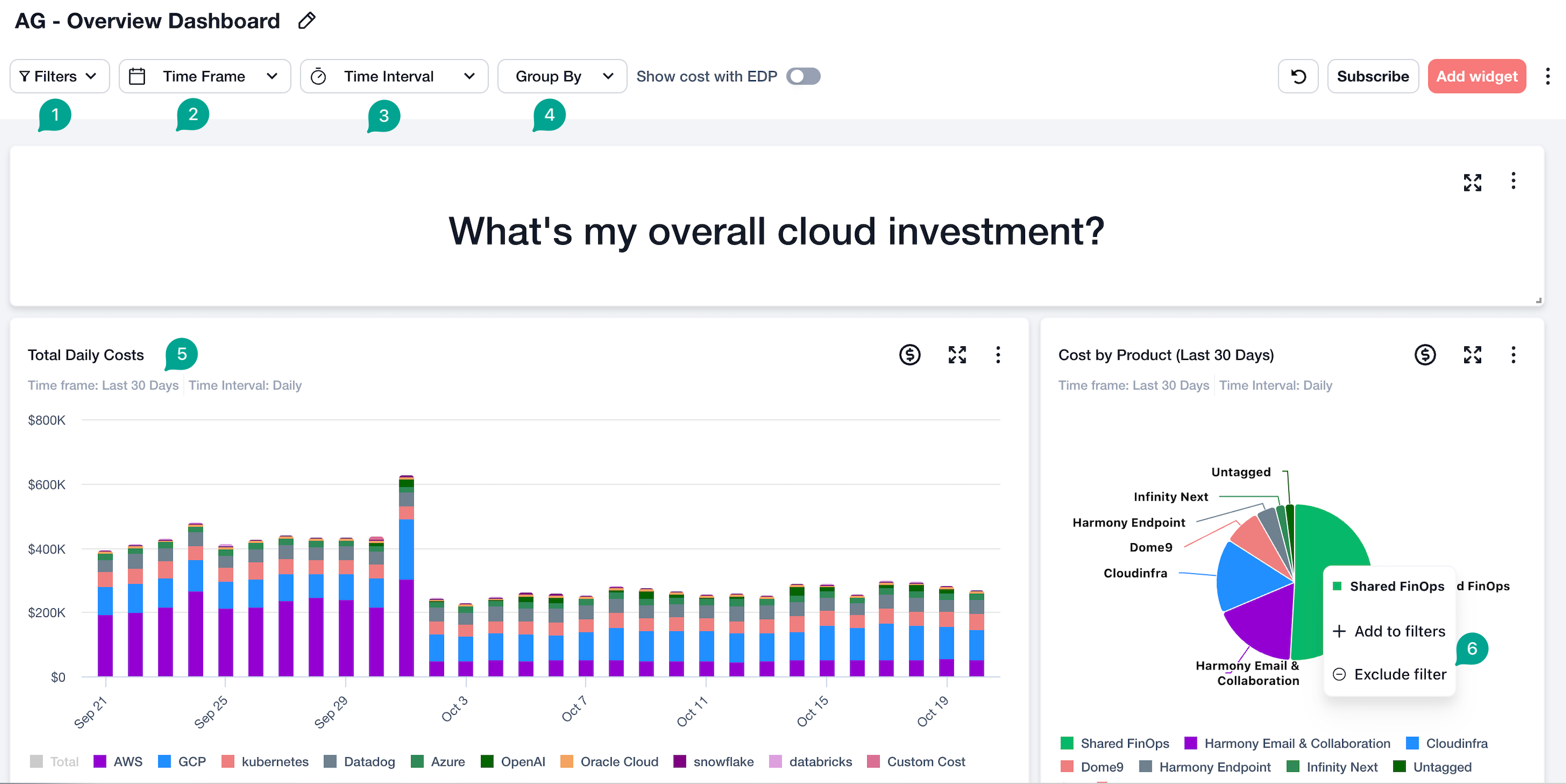
1. **Filters:** Filters can be used in two components: **Basic** and **Advanced** Filters also have two layer types: **Dimension Sets** and **All Dimensions.** See [Dimension Sets](https://docs.finout.io/configuration/dimension-sets) for more information.
Note: You can define default filters for your dashboard; see dashboard settings.
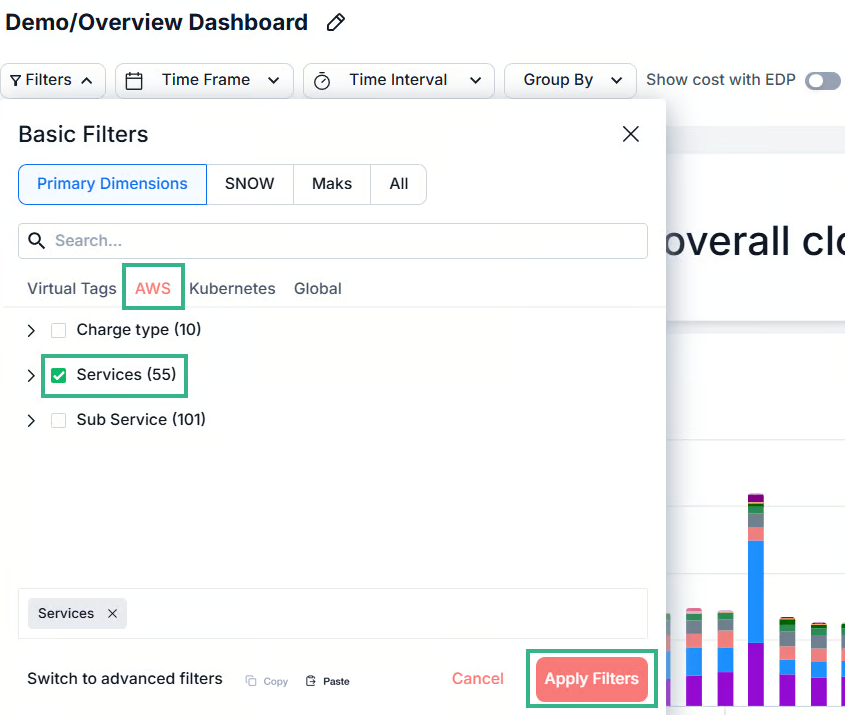
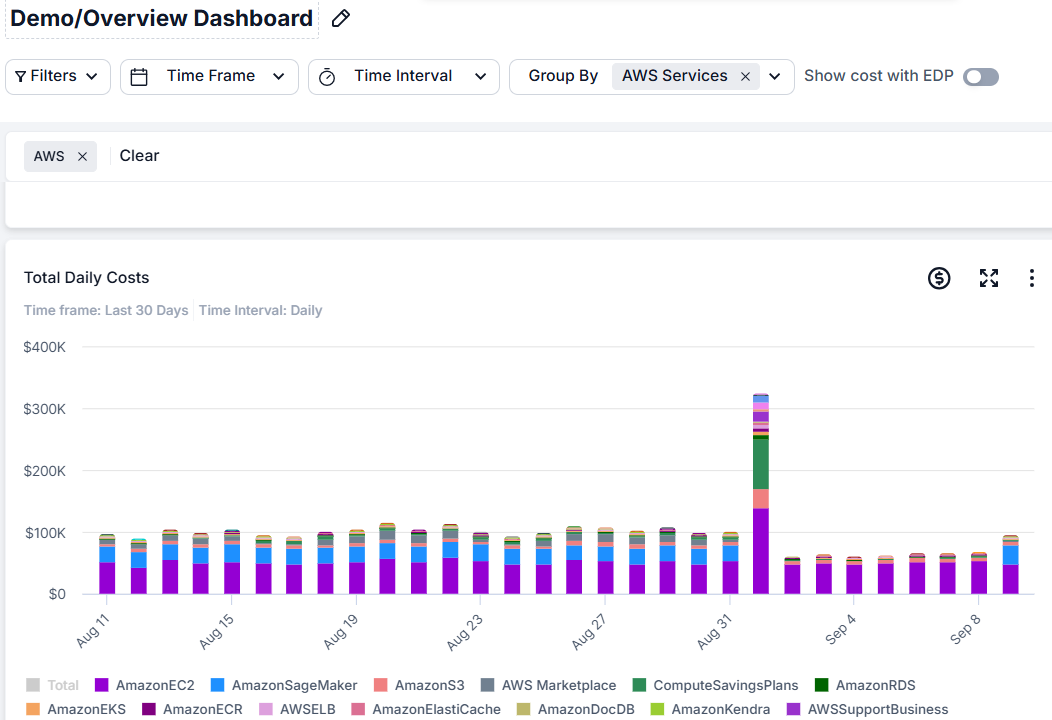
**Basic Filters:** Select the keys for a cost center or virtual tag to view their cost or usage trends over time. This fully customizable filter lets you combine keys in any way that fits your needs and also serves as the foundation for creating a saved view. For example: You what to see the cost over time for AWS services.
1. Navigate to your dashboard and click **Filters.**
2. Select the **AWS** tab, mark **Services**, and click **Apply Filters**.
Note: Copy/ Paste - You can copy and paste filter configurations from this view into any other filter capability in Finout, or paste configurations from other areas back into this view.
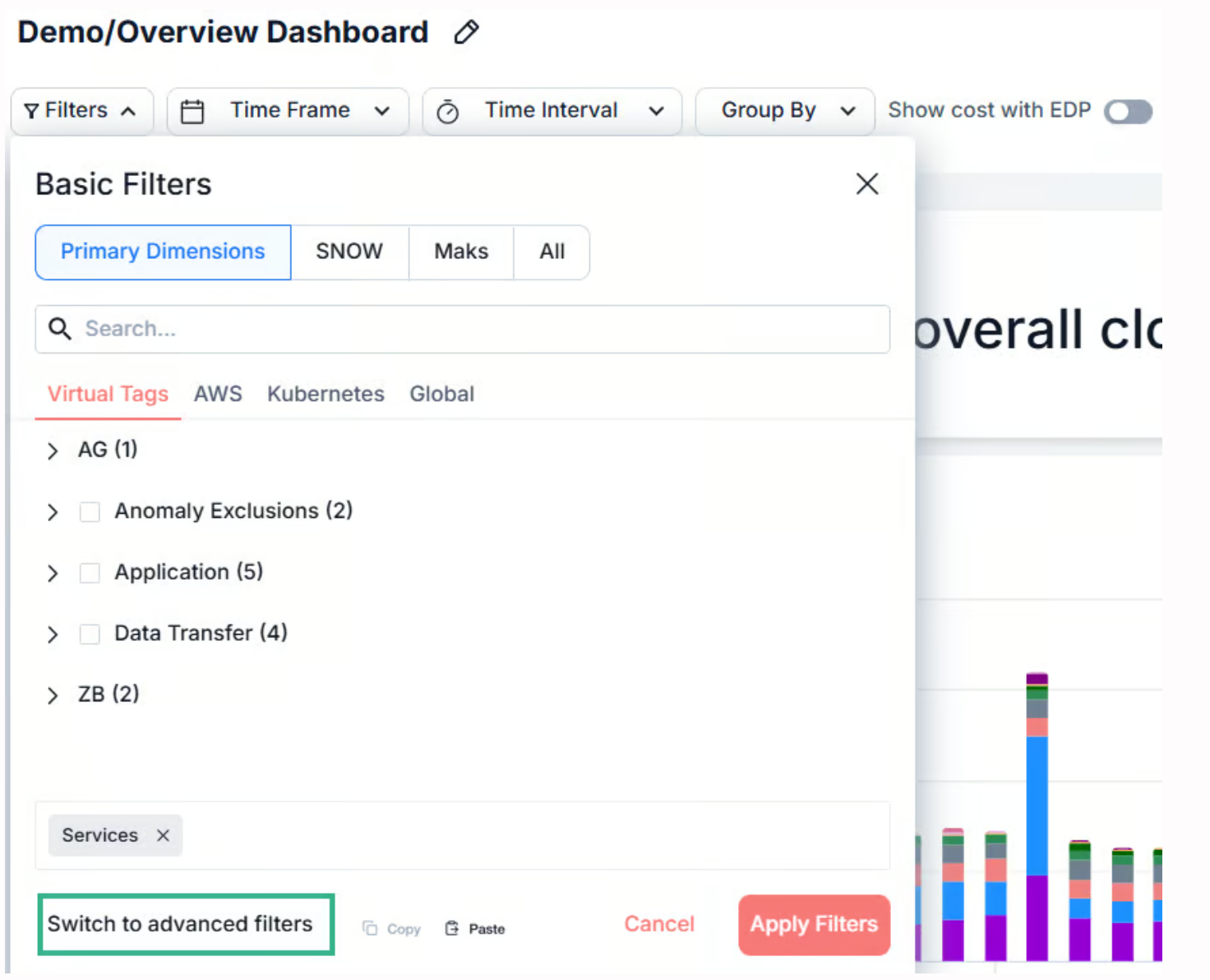
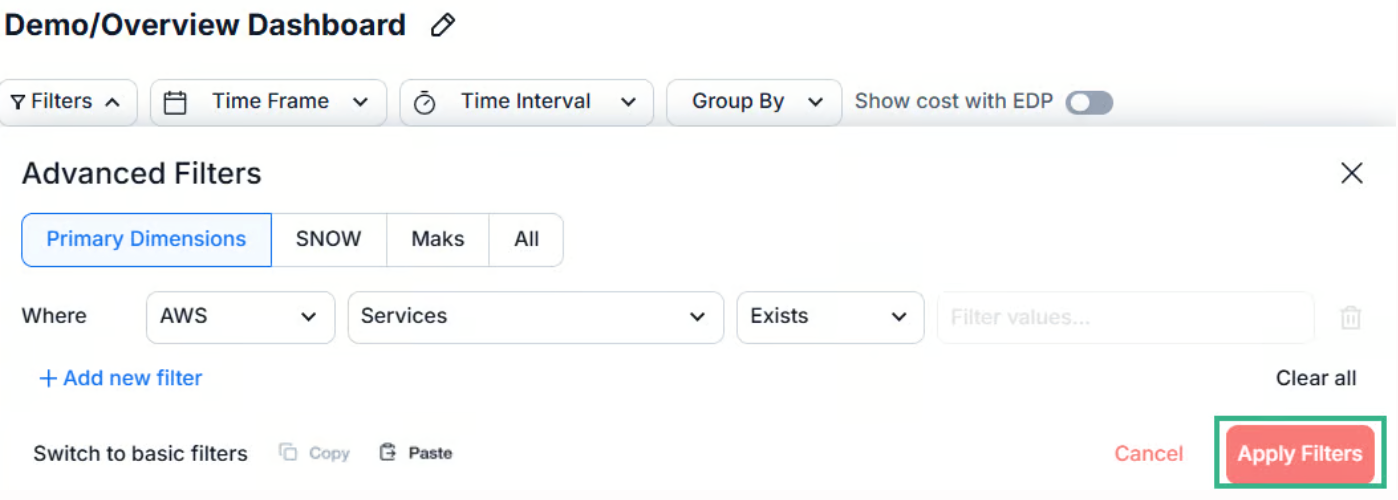
**Advanced Filters:** You can optionally refine your view with more granular control using advanced operators, which are ideal for deeper analysis or complex filtering needs.
1. Navigate to your dashboard, click **Filters** and then **c**lick **Advanced Filters.**
2. Select a **Cost Center**, a **Key**, an **Operator**, and a **Value**, and then click **Apply Filters**.
Note: Copy/ Paste - You can copy and paste filter configurations from this view into any other filter capability in Finout, or paste configurations from other areas back into this view.
2. **Time Frame -** The default is the last 30 days. You can either select one of the predefined options or switch to custom. \

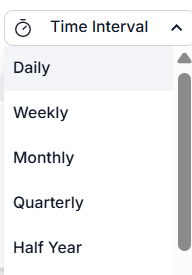
3. **Time Aggregation -** Daily, weekly, or monthly.
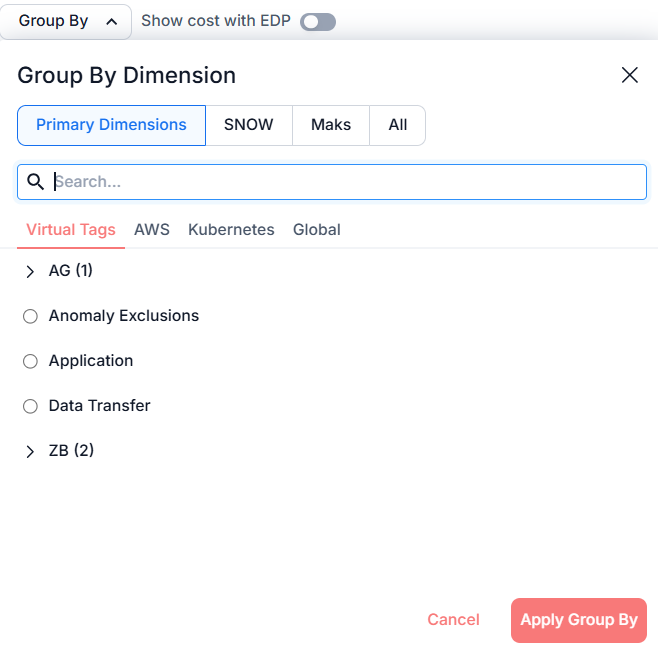
4. **Group By** - You can group by any value in your dashboard.
Note: Group by effects only cost and usage widgets.
5. **Cost and Usage Widget Drilldown**: You can drill down directly on a dashboard from a Cost or Usage widget by clicking a specific value. The chosen data will then apply to the dashboard filter and group-by, allowing you to instantly focus on the relevant slice of cloud cost or usage data.
Note: This feature only affects Cost and Usage widgets.
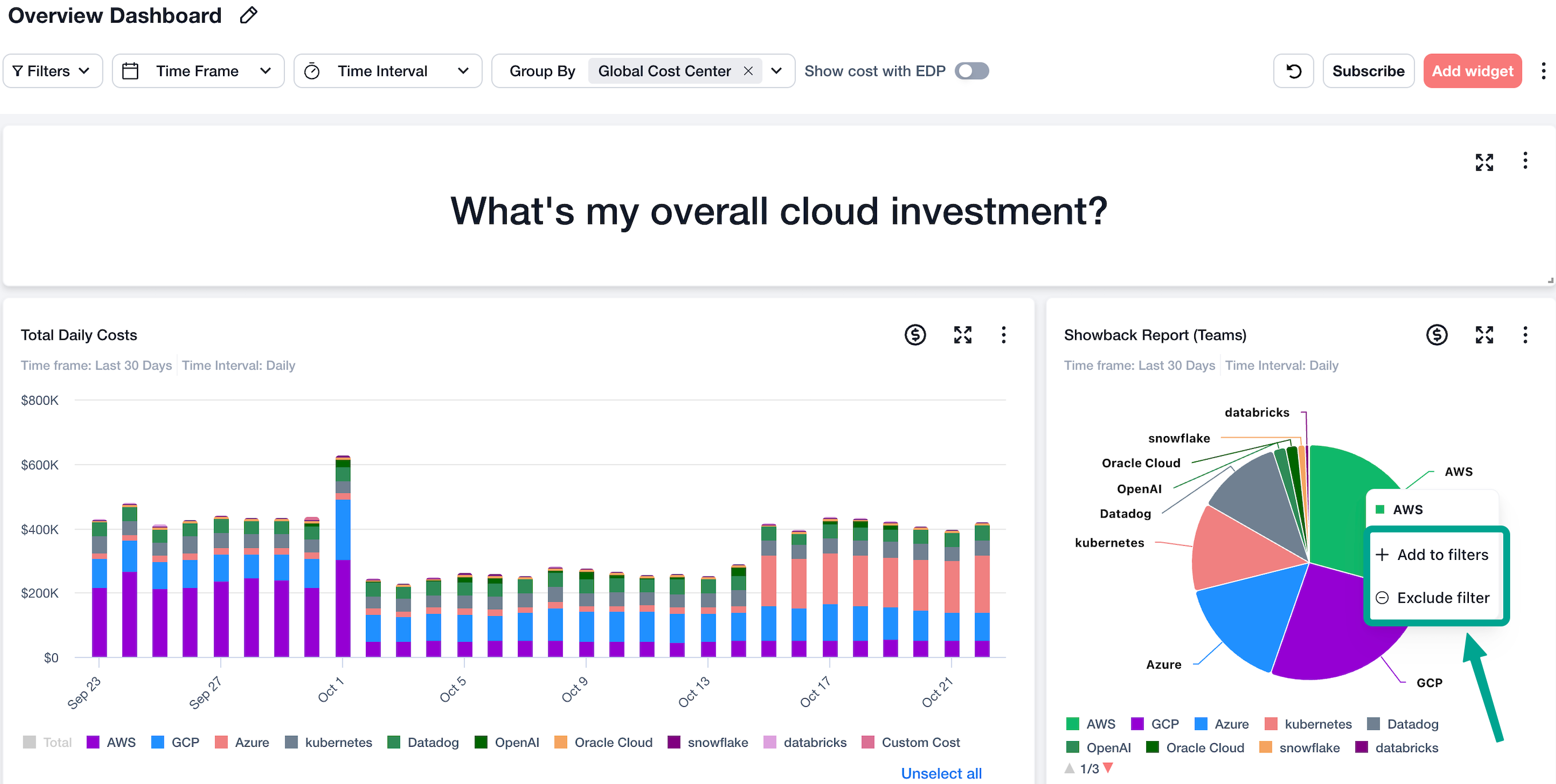
6. Include or exclude values from Cost and Usage widgets.
1. In Dashboards, find your desired dashboard.
2. Right-click a bar, pie, or line chart in Cost or Usage widgets to include or exclude it from the dashboard filters.\
**Result**: The included or excluded value is added to the filters.
### Custom Dashboard Settings
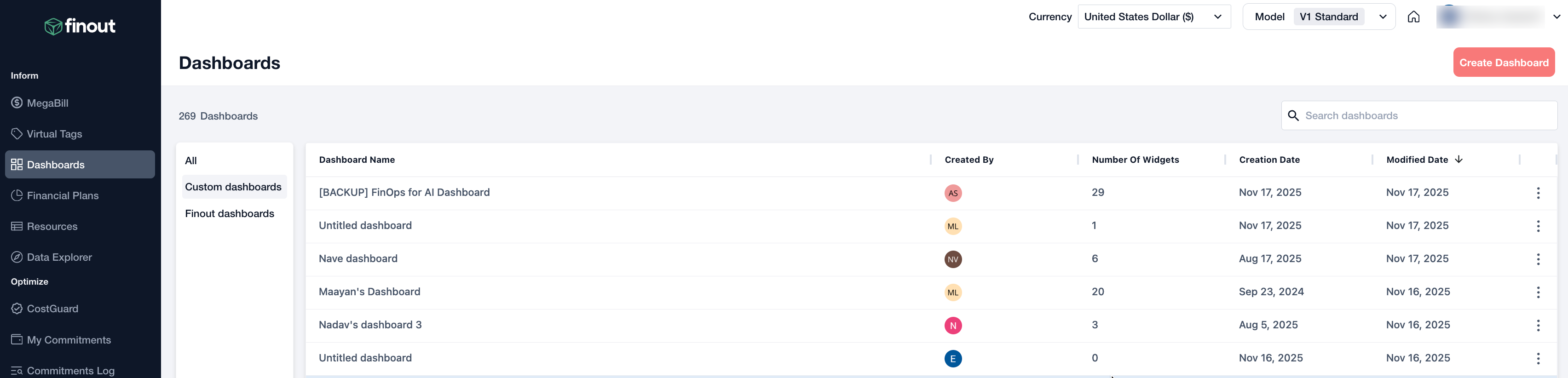
1. In Finout, navigate to **Dashboards**.
A list of your dashboards appears.
2. Select the relevant dashboard.\
The **Dashboard overview** appears.
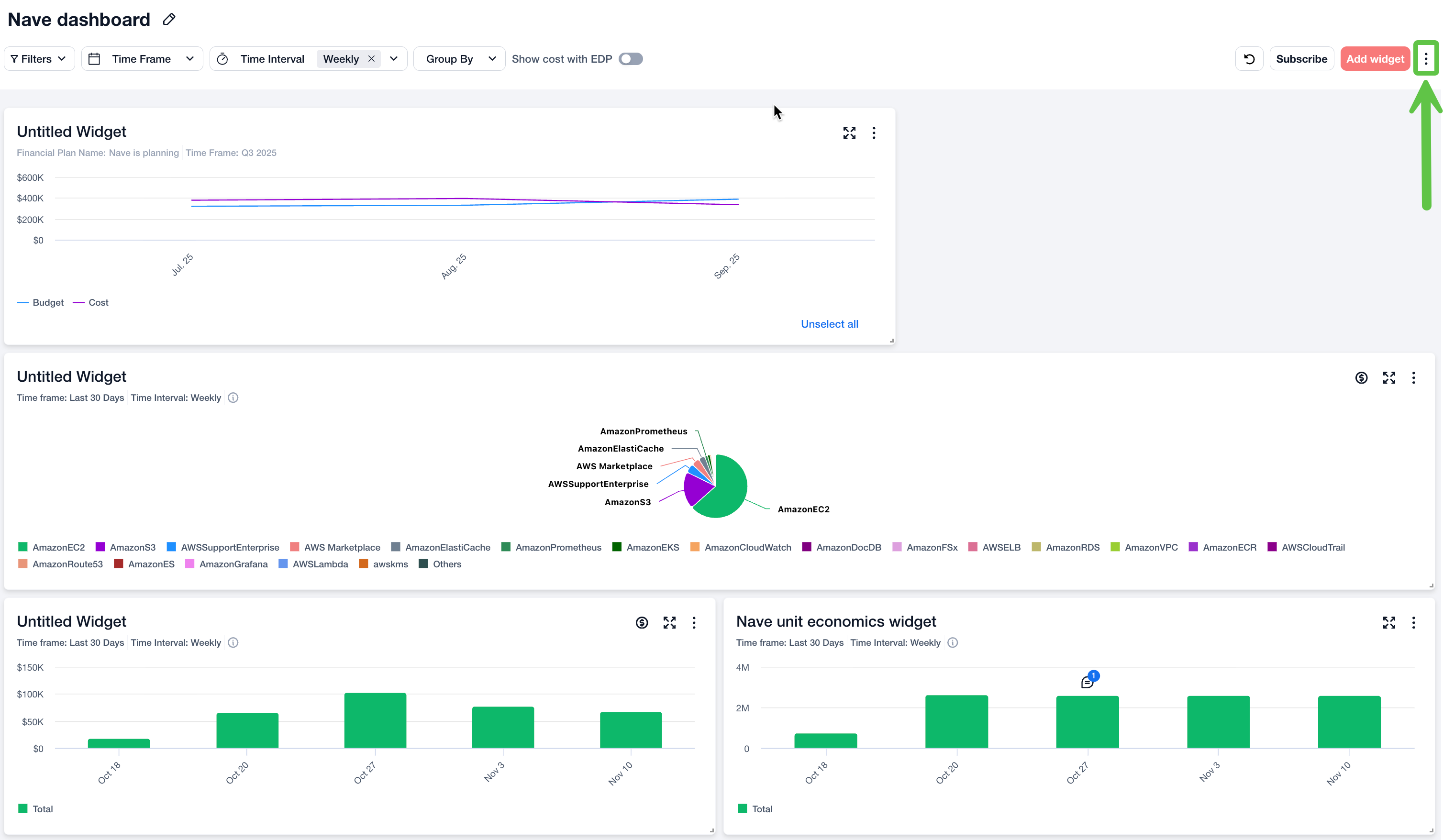
3. Click and then click **Dashboard Settings**. \
The **Dashboard Settings** side-window appears.
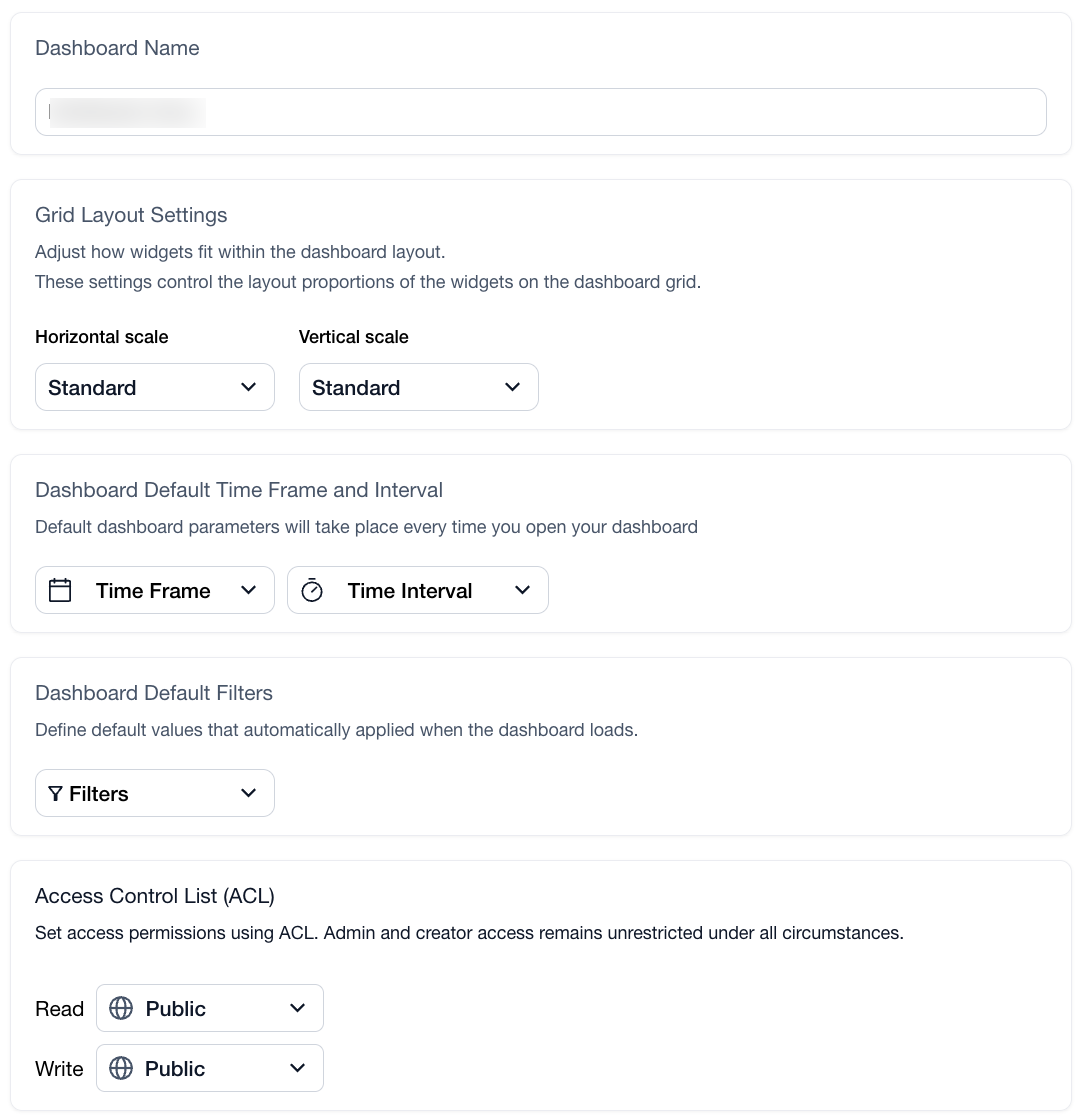
4. **Edit** the following fields:
* **Dashboard Name**: Edit the name of your dashboard.
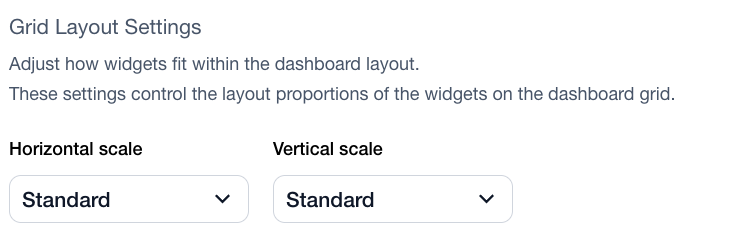
* **Grid Layout Settings**: Configure the dashboard's horizontal and vertical scales to control how widgets fit within the dashboard layout.\
\
Horizontal Scale:
* Spacious
* Standard
* Compact
Vertical Scale:
* Compact
* Standard
* **Dashboard Default Filters**\
Define default values that will automatically apply when the dashboard loads.
1. Click **Filters.**\

2. Choose the values you want to set as the default in the dashboard and click **Apply Filters**.\

3. Click **Save.**\
The filters are saved to the dashboard and will appear whenever the dashboard is accessed.
Note: You can add additional filters while viewing a dashboard. However, when you exit and reopen the dashboard, only the default filters are retained. Any filters added during the session are not saved.
* **Default Timeframe and Interval**:
* **Time Frame** (optional): Select a default timeframe for your dashboard.
Note: Once saved, the chosen parameters will appear at the top of your dashboard.
* **Time Interval** (optional): Select a default time interval for all widgets on your dashboard. Once saved, the chosen parameters will appear at the top of your dashboard.
Important: Implementing a dashboard-wide timeframe or interval will override the settings of individual widgets. When these changes are made, you'll receive an alert. A detailed filter overview will also be available to show which widget settings have been affected.
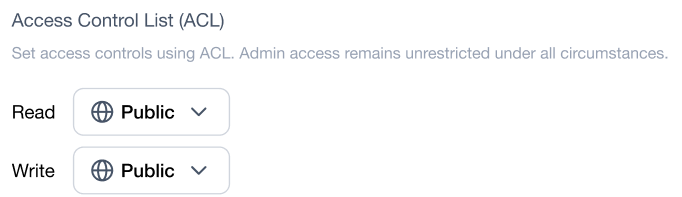
* [**ACL Permissions**](/cross-platform-features/list-of-cross-platform-features/acl-permissions.md)**:**
You can set **read** and **write** permissions as either **Public**, **Private**, and **Shared**. Permission for an object is granted if a user or group has a role with the proper permission and also ACL permission to access the object. By default, ACL read and write permissions follow the account’s default configuration.
* **Types of ACL Permissions:**
* **Public:** Grants access to anyone in the organization that has Role-Based Access Control (RBAC).
* **Private:** Restricts access to admins and the user who created the object.
* **Shared:** Limits access to specific users or groups that have Role-Based Access Control (RBAC).
Note: Admins and creators always retain access.
5.Click **Save**. \
Your settings are saved.
### Open Multiple Dashboards
{% hint style="info" %}
**Note**: This applies only to all dashboards.
{% endhint %}
You can open a dashboard in a new browser tab directly from the dashboards list.\
Right-click the dashboard and select **Open in New Tab**, or use:
* **Command + Click** on macOS
* **Ctrl + Click** on Windows or Linux
This allows you to compare multiple dashboards side by side or keep several dashboards open at the same time.
### Clone and Delete your Dashboard
{% hint style="info" %}
**Note**: You can only delete custom dashboards.
{% endhint %}
Under the Dashboard feature, you can access a list of your custom dashboards. You can clone or delete any custom dashboard. To do so, navigate to the dashboard list and click on the three dots for the dashboard you want to clone or delete.
#### **Add Widgets to your Custom Dashboard**
1. Click **Add Widget** at the top right of the screen.
2. Choose a widget for your dashboard from a list of available templates or recently saved widgets.\
Choose from the following widgets:
* [Cost and Usage](#h_bacda317de)
* [Unit Economics](#h_9ed1e827e4)
* [Text ](#h_668422585b)
* [CostGuard ](#h_bf4f217448)
* [Governance](#governance-widget)
* [Financial Plan](#financial-plan-widget)
* [Data Explorer](#data-explorer-widget)\
\
Go to the specific widget procedure to complete the dashboard setup.
#### Creating Reports for Dashboards
With Finout, you can set up daily, weekly, or monthly reports based on your dashboards. These reports can be conveniently delivered to your email or shared as Slack messages.
To create a report for a specific dashboard, simply navigate to the dashboard view and click on the **Subscribe** button. This will initiate the process of setting up a report specifically tailored to that dashboard.
1. Enter a **Report Name**.
2. Enter a **Report Description**.
3. Select a dashboard.
Note:
You can only choose dashboards for which you have ACL access.
ACL changes do not impact reports. They will continue to run even if access to the dashboard or its underlying objects is revoked.
4. In the **Choose an endpoint**, either select a Slack endpoint or enter an email address.
5. Select a **Report time frame** (Daily, Weekly, or Monthly) and the required number of days, weeks, or months.
6. Select the **Interval** (daily, weekly, or monthly). This defines how often the report will be sent.
* For weekly, select the Day of the Week.
* For monthly, select the Day of the Month.
7. Select the time to Send at and the Time Zone.
8. Click **Save Report**.
#### Customize Predefined Dashboards
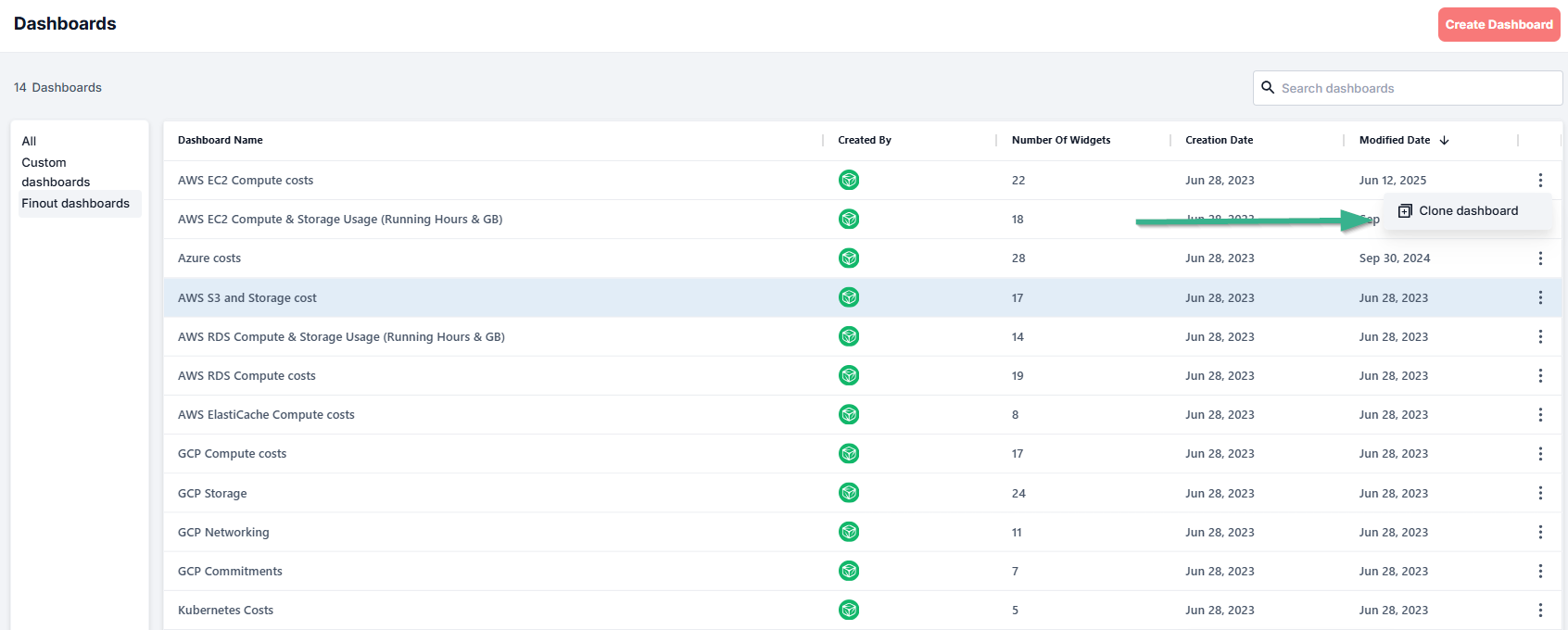
Predefined dashboards can’t be edited directly. To make changes, you’ll need to clone the dashboard and customize the duplicated version.
{% hint style="info" %}
**Note**:
* Users with ACL restrictions and data access permissions may not see all data within a dashboard, even if they can access or clone it.
* In some cases, users may be unable to clone dashboards if all underlying data falls outside their permitted access.
{% endhint %}
1. In Finout, navigate to **Dashboards**.
2. Click  and then click **Clone dashboard**.
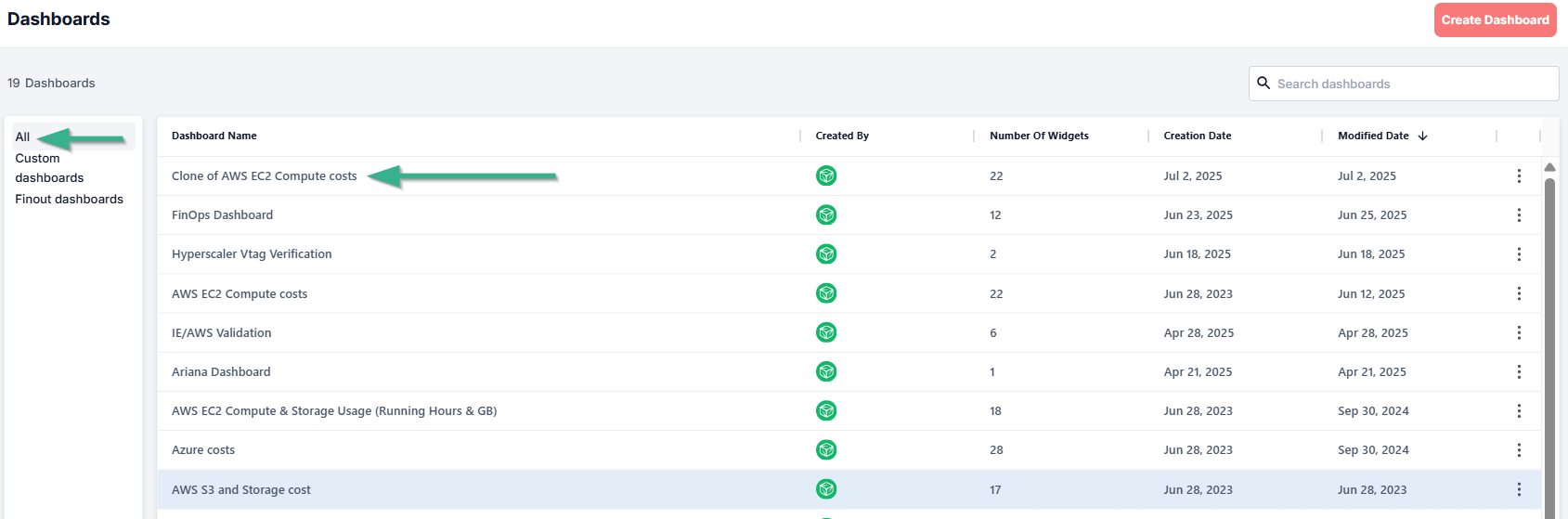
3. Navigate to **All** or **Custom Dashboards** on the right side of Dashboards.
4. Click on the **Copy** of the predefined dashboard and edit in order to fully customize the cloned dashboard.
## **Widget Actions**
Customize your widgets to align with your specific goals by using built-in actions such as edit, duplicate, remove, and export. These options let you quickly adjust metrics, clone and repurpose existing widgets, clean up unused views, or share insights externally. Whether you're fine-tuning a dashboard for a team or highlighting key trends for reporting, widget customization ensures your data is presented clearly and effectively.
### **Edit a Widget**
{% hint style="info" %}
**Note:** This applies to Custom Dashboards.
{% endhint %}
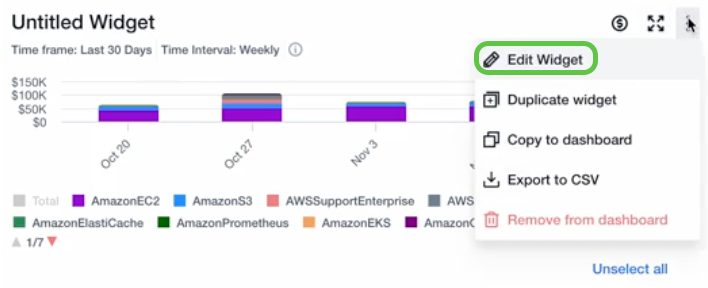
1. Click on the three dots icon and click **Edit Widget.**
You are brought to the widget builder.
2. Make the necessary changes.
Note: See the widget types section for all the widget options.
### Edit a Widget Title
{% hint style="info" %}
**Note:** This applies to Custom Dashboards.
{% endhint %}
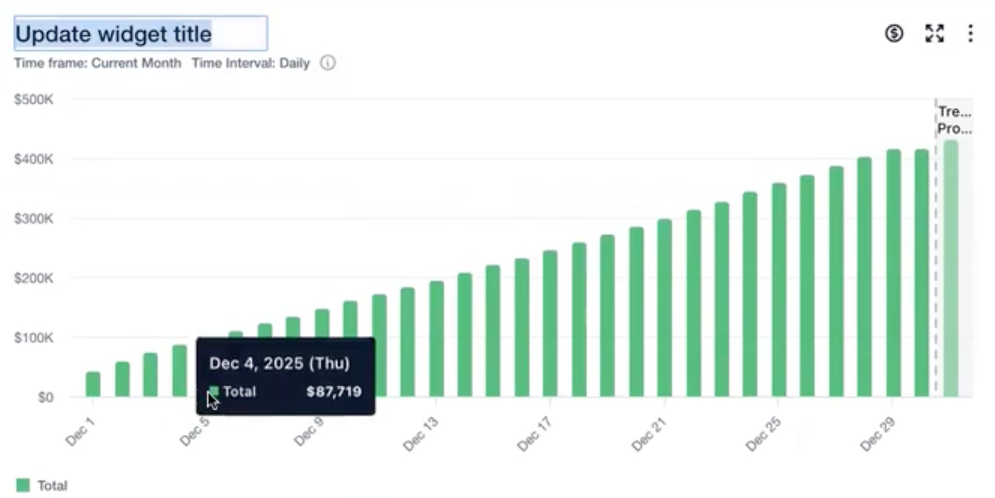
1. Go to the widget in the dashboard that you want to edit.
2. Click in the title and make your changes.
### Duplicate a Widget
{% hint style="info" %}
**Note:** This applies to Custom Dashboards.
{% endhint %}
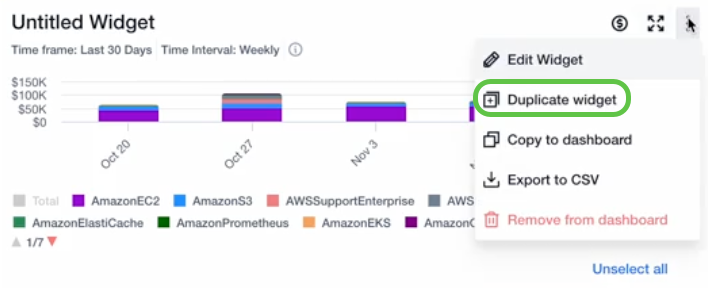
Click on the three dots icon to reveal a dropdown menu of options and select the **Duplicate Widget**.
The widget is duplicated.
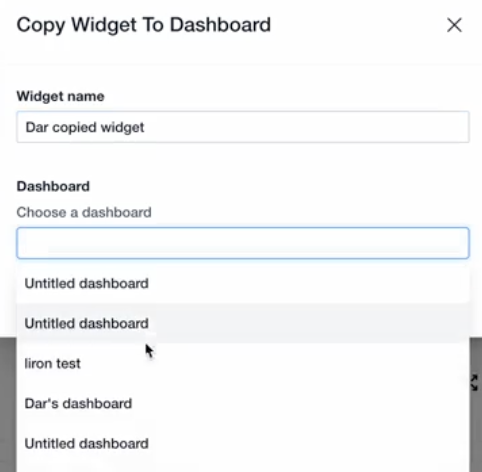
### **Copy Widget to Dashboard**
{% hint style="info" %}
**Note:** This applies to Custom Dashboards.
{% endhint %}
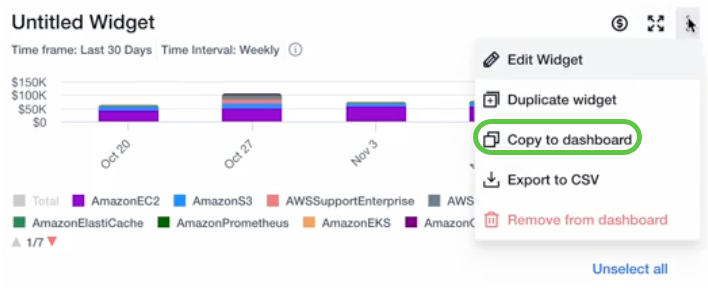
1. Click on the three dots icon.
2. Select **Copy to dashboard.**
3. Enter a **Widget name** and **Choose a dashboard** on which you want to add the copied widget.
4. Click **Copy Widget**.\
The copied widget appears on the selected dashboard.
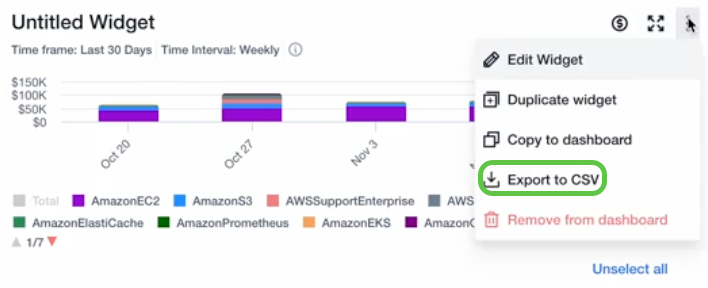
### **Export a Widget to CSV**
{% hint style="info" %}
**Note:** This applies to Custom Dashboards.
{% endhint %}
Click on the three dots icon and select **Remove from dashboard.**
The widget is removed.
### Remove a Widget
{% hint style="info" %}
**Note:** This applies to Custom Dashboards.
{% endhint %}
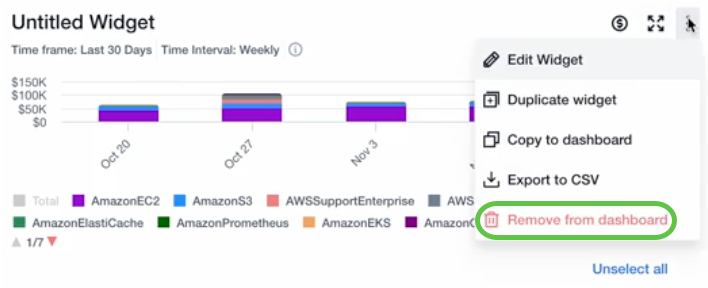
Click on the three dots icon to reveal a dropdown menu of options and select **Remove from the dashboard**.
The widget is removed.
### Open a Widget in MegaBill
{% hint style="info" %}
**Note:** This applies to All Dashboards.
{% endhint %}
---
# Agent Instructions
This documentation is published with GitBook. GitBook is the documentation platform designed so that both humans and AI agents can read, navigate, and reason over technical content effectively. Learn more at gitbook.com.
## Querying This Documentation
If you need additional information that is not directly available in this page, you can query the documentation by asking a question.
Perform an HTTP GET request on the following URL with the `ask` and `goal` query parameters:
```
GET https://docs.finout.io/user-guide/inform/finops-dashboards/manage-dashboards.md?ask=&goal=
```
`ask` is the immediate question: it should be specific, self-contained, and written in natural language.
`goal` is what the user is ultimately trying to achieve, the reason they need the answer. Sharing it helps GitBook give you a better, more relevant answer. A goal is most helpful when it describes the outcome the user wants rather than restating the question. For example, with `ask=how do I create an API token`, a goal like `automate deployments from our CI pipeline` lets GitBook tailor the answer to that use case.
The response will contain a direct answer to the question and relevant excerpts and sources from the documentation.
Use this mechanism when the answer is not explicitly present in the current page, you need clarification or additional context, or you want to retrieve related documentation sections.