> For the complete documentation index, see [llms.txt](https://docs.finout.io/llms.txt). Markdown versions of documentation pages are available by appending `.md` to page URLs; this page is available as [Markdown](https://docs.finout.io/user-guide/inform/virtual-tags/custom-virtual-tags.md).
# Custom Virtual Tags
Custom Virtual Tags in Finout enable you to model cloud spend the way your business actually thinks about it, rather than being constrained by how each provider structures its billing data. They act as a flexible semantic layer on top of your existing costs, so you can define rules that group spend by teams, products, environments, customers, or any other business dimension—across all clouds and services.
Using rule-based logic and filters, you can harmonize different naming conventions, unify cross-cloud metadata, and create a consistent view of ownership and responsibility. Once created, Custom Virtual Tags are available everywhere in Finout—MegaBill, dashboards, Cost Centers, and reports—so every widget and analysis reflects the same, business-aligned model of your cloud spend, making it easier to drive accountability, understand unit economics, and support smarter financial decisions.
## Create a Virtual Tag
1. In Finout, navigate to **Virtual Tags.**
2. Click **Create New** and **Virtual Tag**.\
The **Create virtual tag** page appears.
3. Name the **Virtual tag**.\

4. You can optionally choose an endpoint to be notified about changes made to this virtual tag.
5. Create the rules for the Virtual Tags by setting **Where** conditions and corresponding **Then** actions.\
This can be done through the **AI Virtual Tag Rule Builder** or **Manually.**
* **AI Virtual Tag Rule Builder (Alpha)**:
1. In a virtual tag builder, click **Generate with AI** under a specific rule.\
The free text-box appears.
2. Write what you want the rule to be, for example "All regions in the US per team" and click .\
The virtual tag rule is created.
3. Continue to edit the virtual tag and click **Save**.
* **Manual Rule Builder:**
Important: The order of rules is crucial as it determines their priority. Rule 1 has the highest priority and is assessed first, with its tagging action overriding subsequent rules. Only if a resource does not meet Rule 1's conditions will it be evaluated against Rule 2, and so on.
* WHERE:
1. Select any **cost center** from the [MegaBill](/user-guide/inform/megabill.md).
1. Select a **filter key**.
1. Select an **operator** (One Of, Not one of, Is, Is not, Contains, Not Contains, Exists, or Not exists).
2. Depending on the operation, select or enter one or more **Filter values**.
3. To add a further criterion to the rule, **click +**.
4. Select **AND** or **OR**.
5. Complete the **rule row** as described above.
6. THEN: There are two options:
1. Choose a **static value** for this portion of your infrastructure by choosing **Custom Value** and typing it into the text box.
2. If you already have an appropriate allocation for this portion of your infrastructure in a cloud service provider tag, account name, or resource name, you can select that field using the MegaBill Key option to have those values populated for the Virtual Tag.
Note: when selecting a key from the MegaBill, the key’s values will appear in the MegaBill when filtering or grouping by the Virtual Tag.
\
**Example** - Rule 1 includes: \
**Where conditions**: The rule is structured to evaluate resources across different cloud providers: AWS, GCP, Azure, and Kubernetes. It will trigger if a resource within these providers has specific tags or labels that match predefined values. For AWS and Azure, the rule triggers for resources with any chosen values in 'environment' tags. For GCP, the rule is triggered if the 'env' label is exactly 'production'. For Kubernetes, it checks against specified 'label\_environment' values. \
**Then outcome**: If a resource meets any of the 'Where' conditions, the 'Then' action tags it as 'Production'.
6. In a virtual tag builder, click **Generate with AI** under a specific rule.\
The free text-box appears.
7. Write what you want the rule to be, for example "All regions in the US per team" and click .\
The virtual tag rule is created.
8. Continue to edit the virtual tag and click **Save**.
9. You can optionally **set a timeframe** for the virtual tag, allowing you to specify exact dates for the rule application.
10. Click **Add rule** to add additional rules as required.
Note: The number of rules allowed in a virtual tag is 50.
11. You can optionally **Set the value for the untagged cost** field for all unallocated costs not covered by any rules are aggregated under the tag value "untagged." You can enter a custom name for these untagged costs to generate a single value or choose a key from the MegaBill to generate multiple values simultaneously. This feature enables continuous enhancement of Virtual Tag coverage and the creation of rules to reduce untagged costs.
12. To see a preview, click **Preview Virtual Tag**. The virtual tag preview appears.
13. Click **Create Virtual Tag**.\
The **Save version** modal appears.
* In the modal:
* Optionally enter a **Change Description** to describe what this version includes. The limit is 280 characters.
* Review the **Mark as Live** checkbox (Beta):
* **Checked (default)** — this version becomes the Live version. It is immediately active and available for filtering and grouping across Finout (MegaBill, dashboards, Reports, etc.).
* **Unchecked** — a new version is created and saved to the version timeline, but the Live version does not change. Use this to stage a configuration without affecting other users.
* Click **Save**.
* The virtual tag is created and appears in the Virtual Tags list.
{% hint style="info" %}
**Note:**
* You cannot edit a Change Description after a version is created.
* The description limit is 280 characters.
* The Virtual Tag name and ACL permissions are not included in the version history.
{% endhint %}
## Duplicate a Virtual Tag
1. Navigate to **Virtual Tags**.
2. Click  on the Virtual Tag you want to edit from the list and then click **Duplicate Virtual Tag**.\
The virtual tag is duplicated.
{% hint style="info" %}
**Note**: Duplicating a Virtual Tag creates a copy of its *live* *version* only, not its *non-live* *versions*.
{% endhint %}
## Edit a Virtual Tag
1. Navigate to **Virtual Tags**.
2. Click the  on the Virtual Tag you want to edit from the list and then click **Edit Virtual Tag.**\
The Edit virtual tag screen opens.
3. (Beta) When you open a Virtual Tag for editing, Finout loads the Live version by default. If no Live version exists, Finout loads the latest version in the list. To edit a different version, use the version dropdown at the top of the edit screen.
4. Edit Virtual Tag rules: Click on the rule you want to change.
5. In the **Where** option, you can change the criteria using the **Filter keys** dropdown to select different filter types, such as tags or labels, and modify the logical operators as needed.
* Adjust the cloud environments by selecting or deselecting them.
* In the **Then** section, update the tag value that will be assigned when the rule's conditions are met.
* Add or Delete Rules using the **+ Add rule button** to include new segmentation rules or the **–** button to remove an existing rule.
Note: The number of rules allowed in a virtual tag is 50.
* Adjust the rule order as desired using the **Move rule** function, which allows you to change their ranking, since the rules are applied from top to bottom.
6. Additional edits:
* Adjust the time frame.
* Edit the values for the untagged costs.
* Set up notifications for changes.
7. Filter by conditions: Utilize the filter values dropdown options to narrow down your Virtual Tag based on specific chosen filters. This is particularly useful when the created Virtual Tag has many rules. Instead of manually searching for the specific item to edit within the Virtual Tag, you can use the filters option to drill down and easily find what you need to edit.
Filter types:
* Virtual Tag values: Filter based on the names assigned to the rule in the "Then" section.
* Filter keys: Filter based on the keys chosen in your Virtual Tag.
* Filter values: Filter based on the exact values that trigger the rule.
8. Click **Save**.\
The **Save version** modal appears.
9. In the modal:
* Optionally enter a **Change Description**. You can add up to 280 characters. Change description cannot be added after saving.
* Review the **Mark as Live** checkbox:
* **Checked (default)** — this version becomes the Live version and goes live across all of Finout immediately.
* **Unchecked** — the version is saved without affecting the current Live version.
* Click **Save**.\
The Virtual Tag is updated.
{% hint style="info" %}
**Note:** To open a virtual tag that has saved versions that are not the current Live, Finout loads the Live version by default. You can select a version from the version history to base your edits on a previous configuration. This creates a new version (a copy of the selected version) that you can then save.
{% endhint %}
### View Version History
Each time a Virtual Tag is created or saved, a new version is added to the version timeline. You can optionally include a Change Description when saving. The Live version is the single active version visible and usable across the account. All other versions are available in the version history.
**To view version history:**
1. Navigate to **Virtual Tags**.
2. Click **⋮** on the Virtual Tag you want to inspect, then click **View version history**.\
The **Version history** side panel opens.
3. View the versions in chronological order. The version marked **Live** is the currently active version used across Finout.
4. To filter versions by date, select a date range and apply it to the version history view.
{% hint style="info" %}
**Note:**
* For the Primary version, there is no retention limit.
* Virtual Tags are limited to 100 versions per tag and retain data for one year. If a 101st version is created, the oldest non-primary version is automatically deleted.
{% endhint %}
### Set a Version as Live (Beta)
Live version is the single active configuration that all users see across Finout. You can set any version as Live, including older ones.
{% hint style="info" %}
**Note:** Only users with **write** ACL permission on the virtual tag can set a version as Live. Admin users have write permission by default.
{% endhint %}
**To set a version Live:**
1. Navigate to **Virtual Tags**.
2. Click **⋮** on the Virtual Tag and click **View version history**.\
The **Version history** side panel opens.
3. Select the version you want to make Primary.
4. Click **Set as Live Version**.\

5. A confirmation modal appears. Optionally enter a **Change Description**.
6. Click **Set as Live**.\
\
\
The selected version becomes the Live version. All users with view access now see this configuration across Finout, and all objects relying on this Virtual Tag are updated accordingly.\
The version history updates to show the newly Live version labeled **Live**.
### Delete Virtual Tags
1. Navigate to **Virtual Tags**.
2. Click  on the Virtual Tag you want to edit from the list and then click **Delete Virtual Tag**.
Note: Deleting a virtual tag also deletes all versions.
3. Click **Delete**.\
The virtual tag is deleted.
### Virtual Tag Settings
1. Navigate to Virtual tags.
2. Click on a **Virtual Tag**.\
The Edit virtual tag page appears.
3. Click .\
The Settings side window appears.
4. [**ACL permissions**](/cross-platform-features/list-of-cross-platform-features/acl-permissions.md):
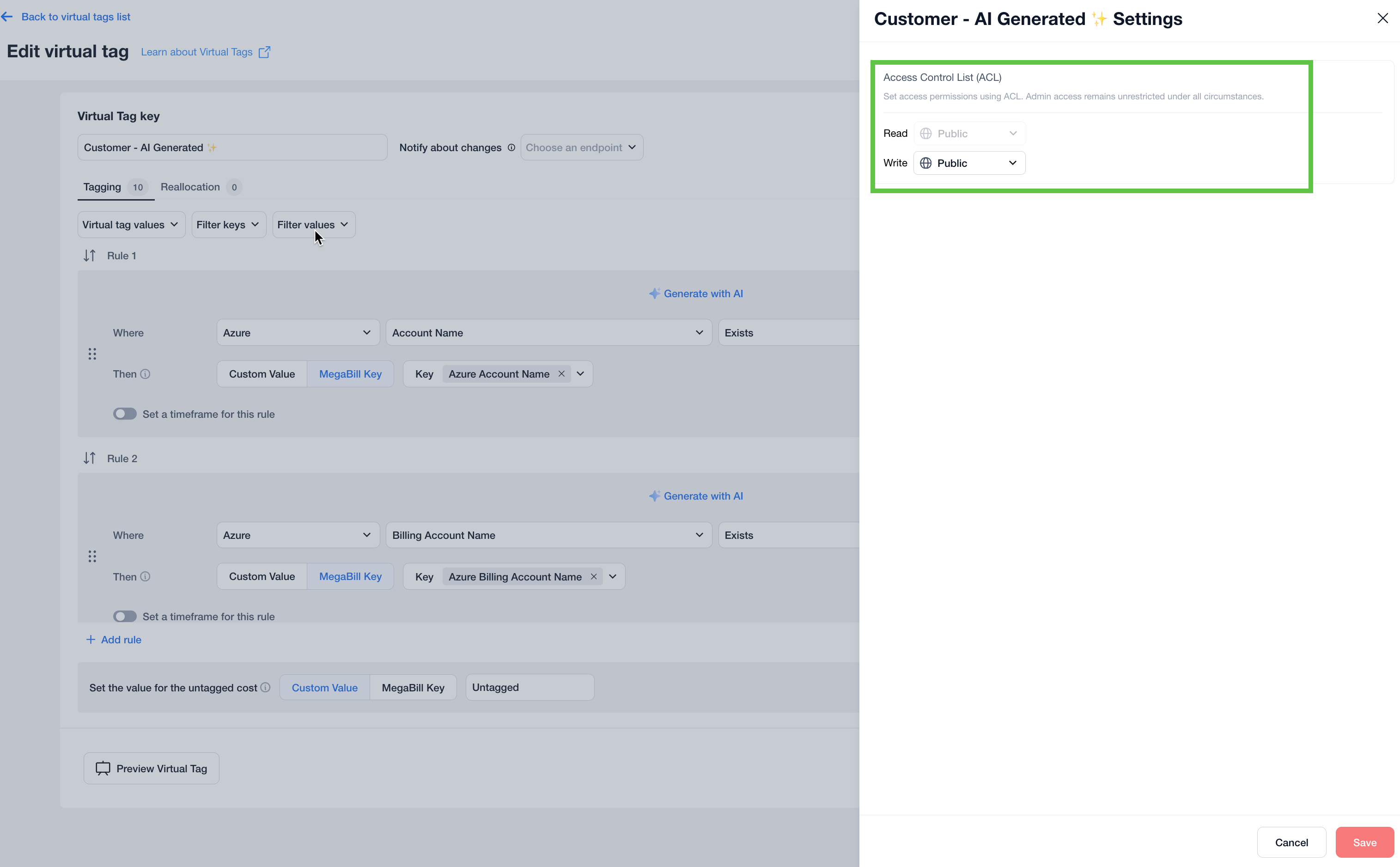
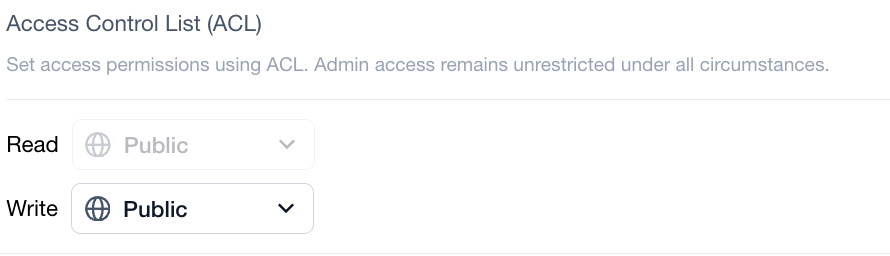
**Read** permissions are always public for virtual tags, but you can set **write** permissions as either **Public**, **Private**, and **Shared.** Permission for an object is granted if a user or group have a role with the proper permission and also ACL permission to access the object. By default, the write permissions are set according ot the account default, but users can change it to view or modify an object if they have Role-Based Access Control (RBAC) to read or write the object.
Note:
Virtual tags are always public for read purposes, allowing all users in the account to utilize them for filtering and grouping, as well as view their configuration. However, only users with the appropriate write ACL permissions can edit a virtual tag’s configuration.
Write access follows the account-level default but can be modified as needed.
* **Types of ACL Permissions:**
* **Public:** Grants access to anyone in the organization that has Role-Based Access Control (RBAC).
* **Private:** Restricts access to admins and the user who created the object.
* **Shared:** Limits access to specific users or groups that have Role-Based Access Control (RBAC).
Note: Admins and creators always retain access.
5. Click **Save**.\
ACL permissions are set.
### FAQs
**Can I restore a previous version?**\
Yes. Select any version in the version history and click **Set as Live**. The selected version's configuration is immediately Live across Finout.
**Who can set a version as Live?**\
Only users with **write** ACL permission on the Virtual Tag can set a version as Live. Admin users have write permission by default. Users with read-only access cannot change the Live version.
**How do I know if a Virtual Tag has no Primary version?**\
In the Virtual Tags list, Virtual Tags without a Live version show a note indicator in the Version column. Hovering over the note reveals: "There is no Primary version. This Virtual Tag is not available for filtering and grouping

**Can a Virtual Tag have no Live version?**\
Yes. If you save a version without checking **Set as Live**, or if no version has ever been set to Live, the Virtual Tag exists in the system but has no active configuration. It will not be available for filtering or grouping across Finout until a version is set as Live.
---
# Agent Instructions
This documentation is published with GitBook. GitBook is the documentation platform designed so that both humans and AI agents can read, navigate, and reason over technical content effectively. Learn more at gitbook.com.
## Querying This Documentation
If you need additional information that is not directly available in this page, you can query the documentation dynamically by asking a question.
Perform an HTTP GET request on the following URL with the `ask` and `goal` query parameters:
```
GET https://docs.finout.io/user-guide/inform/virtual-tags/custom-virtual-tags.md?ask=&goal=
```
`ask` is the immediate question: it should be specific, self-contained, and written in natural language.
`goal` is what the user is ultimately trying to achieve, the reason they need the answer. Sharing it helps GitBook give you a better, more relevant answer. A goal is most helpful when it describes the outcome the user wants rather than restating the question. For example, with `ask=how do I create an API token`, a goal like `build a script that syncs our docs to a CMS` lets GitBook tailor the answer to that use case.
The response will contain a direct answer to the question and relevant excerpts and sources from the documentation.
Use this mechanism when the answer is not explicitly present in the current page, you need clarification or additional context, or you want to retrieve related documentation sections.



 .\
The virtual tag rule is created.
.\
The virtual tag rule is created.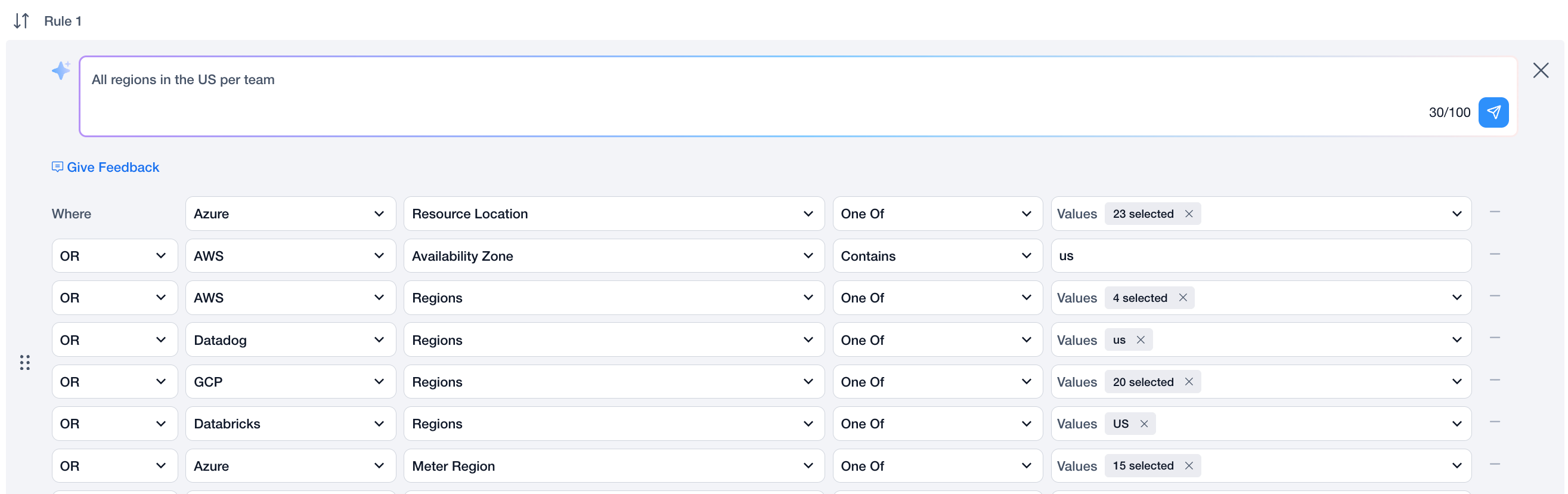


 .\
The virtual tag rule is created.
.\
The virtual tag rule is created.