# Finout Virtual Tags

## Overview

Finout Virtual Tags give you an out-of-the-box way to slice and analyze your cloud costs without building complex rules from scratch. Based on Finout’s FOCUS cost model, these predefined tags normalize core dimensions like provider, service, region, charge category, and pricing type, creating a consistent cross-cloud structure from day one. When a new account is created, Finout automatically adds this curated set of tags—along with additional FinOps-oriented views such as AI spend or efficiency indicators—so you can start analyzing your data immediately across all CSPs using a unified, business-ready taxonomy.

This configuration is shown in read-only mode, but you can clone any Finout virtual tag into your Custom Virtual Tags to change the logic for your specific needs. This provides a fast starting point with standardized, Finout-maintained definitions for common scenarios, offering the flexibility to adapt them to your organization’s data model and governance policies.

## Predefined Virtual Tag Types

| Virtual Tag Name       | Description                                                                                                                                                                                                                                                                                               |
| ---------------------- | --------------------------------------------------------------------------------------------------------------------------------------------------------------------------------------------------------------------------------------------------------------------------------------------------------- |
| FOCUS/Sub Account ID   | Exposes the provider-assigned identifier of a sub-account (such as an account, subscription, or project), so you can group, analyze, and allocate costs by your organizational structure.                                                                                                                 |
| FOCUS/Sub Account Name | Exposes the provider-assigned name of a sub-account (such as an account, subscription, or project), allowing you to easily identify, group, and analyze costs using readable organizational names.                                                                                                        |
| FOCUS/Provider         | Shows which provider supplies the resource or service (for example, a cloud vendor or SaaS provider), making it easy to filter and report on costs by provider.                                                                                                                                           |
| FOCUS/Service Name     | Displays the name of the purchased service or offering (such as a cloud VM service, managed database, or professional services), helping you analyze cost trends over time and focus investigations on specific services.                                                                                 |
| FOCUS/Region           | Surfaces the provider’s display name for the geographic location where a resource runs or a service is delivered, so you can compare costs and unit prices based on where workloads are deployed.                                                                                                         |
| FOCUS/Resource ID      | Shows the provider-assigned identifier of an individual resource (such as an instance ID, database ID, or bucket), enabling detailed cost reporting, analysis, and allocation at the asset level.                                                                                                         |
| FOCUS/Charge Category  | Classifies each charge at a high level based on how it is billed (for example, usage, fees, support, or adjustments), helping you distinguish between different types of charges that may need different handling.                                                                                        |
| FOCUS/Service Category | Groups each billing line item into a high-level service category aligned with the FOCUS standard (such as Compute, Storage, Networking, or Database) across AWS, GCP, Azure, and Oracle Cloud, making it easy to analyze spend patterns across providers without mapping provider-specific SKUs yourself. |
| Extended Support       | Classifies billing line items that incur Extended Support charges - i.e., fees for running end-of-life versions of managed services such as AWS RDS, EKS, ElastiCache, OpenSearch, or GCP Cloud SQL. Use to track and reduce avoidable extended support costs.                                            |
| Marketplace Spend      | Classifies billing line items originating from cloud marketplace purchases (AWS Marketplace, Azure Marketplace, GCP Marketplace). Use to separate third-party software and service spend from native infrastructure costs.                                                                                |
| Taggable Spend         | Classifies billing line items that are eligible for native resource tagging - i.e., usage charges with an associated resource ID. Non-taggable rows (support, tax, credits, commitments) are excluded. Use to measure and improve tag governance coverage.                                                |
## Duplicate Finout Virtual Tags for Customization <a href="#customize-predefined-dashboards" id="customize-predefined-dashboards"></a>

Finout virtual tags can’t be edited directly. To make changes, you’ll need to duplicate the virtual tag and edit the duplicated version.

{% hint style="info" %}
**Note**: Any future changes made to the original Finout Virtual Tag will **not** be applied to your duplicated version.
{% endhint %}

1. In Finout, navigate to **Virtual Tags**.<br>

   <figure><img src="/files/K6OG70FiTEDy4fwfllJT" alt=""><figcaption></figcaption></figure>
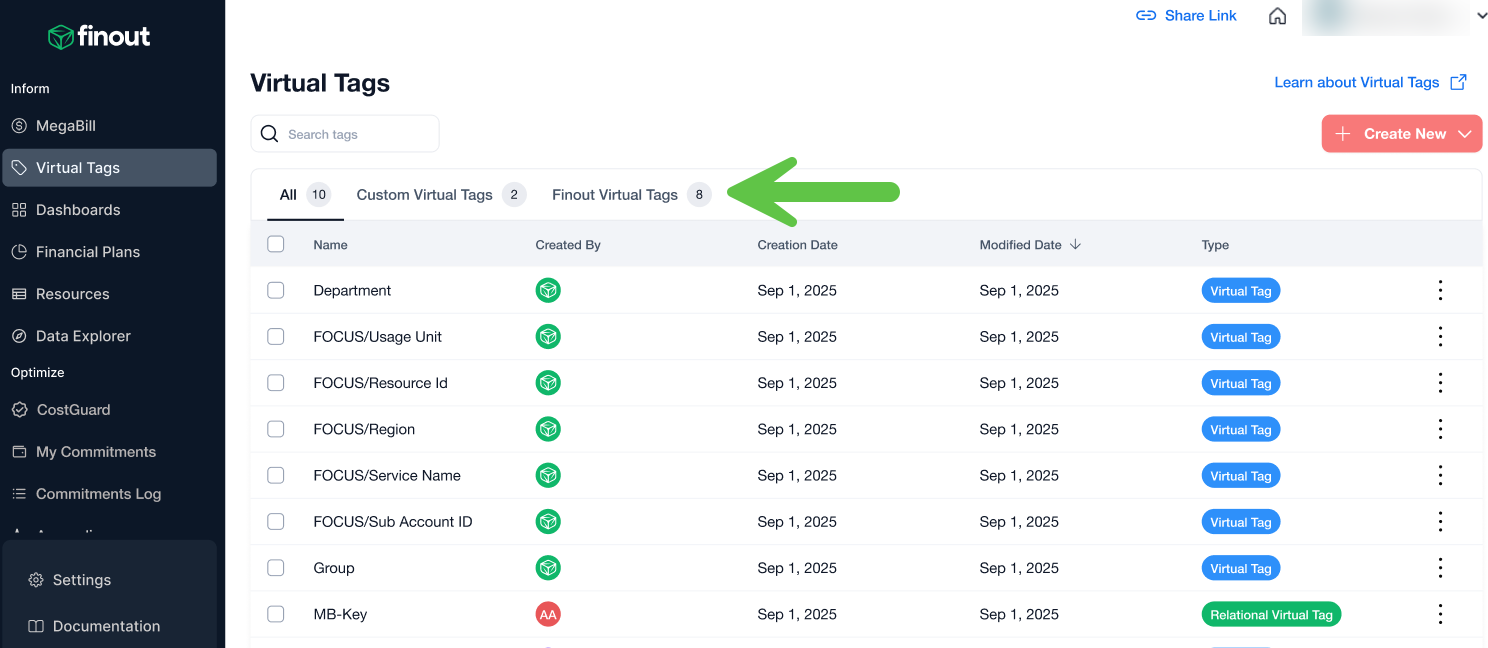
2. Click the **Finout Virtual Tags** tab.<br>

   <figure><img src="/files/1y0WvwBvqwzNGbn4CVEu" alt=""><figcaption></figcaption></figure>
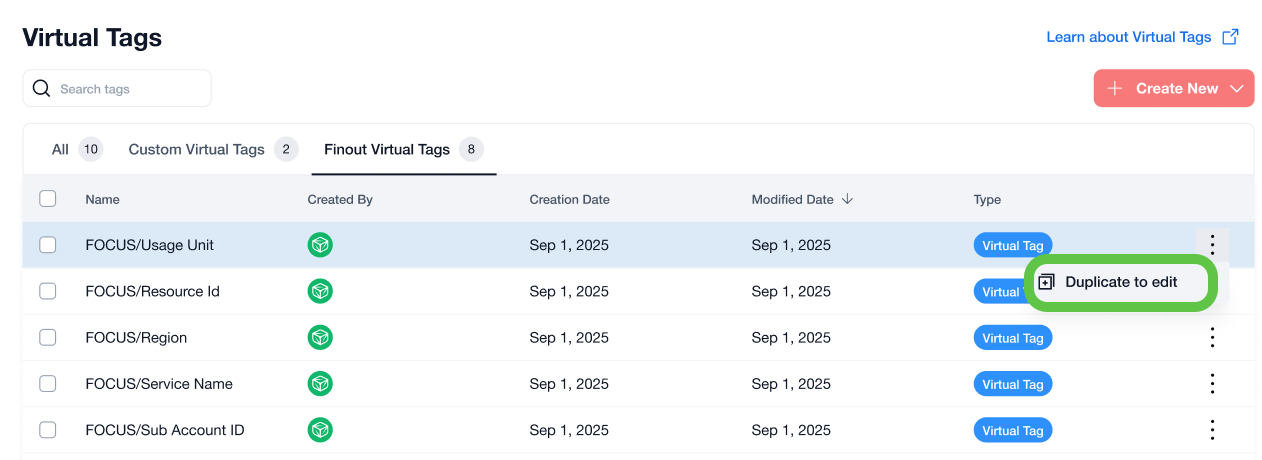
3. Click ![](https://docs.finout.io/~gitbook/image?url=https%3A%2F%2F3858159242-files.gitbook.io%2F%7E%2Ffiles%2Fv0%2Fb%2Fgitbook-x-prod.appspot.com%2Fo%2Fspaces%252FWqjB2puKXPDR7L86FX2e%252Fuploads%252FuCPzMsQJNoMBmE25eInw%252Fimage.png%3Falt%3Dmedia%26token%3D89aacbcd-d585-4ff0-8d76-7472074afdd0\&width=300\&dpr=4\&quality=100\&sign=72b5676e\&sv=2) and then click **Duplicate to edit**.\
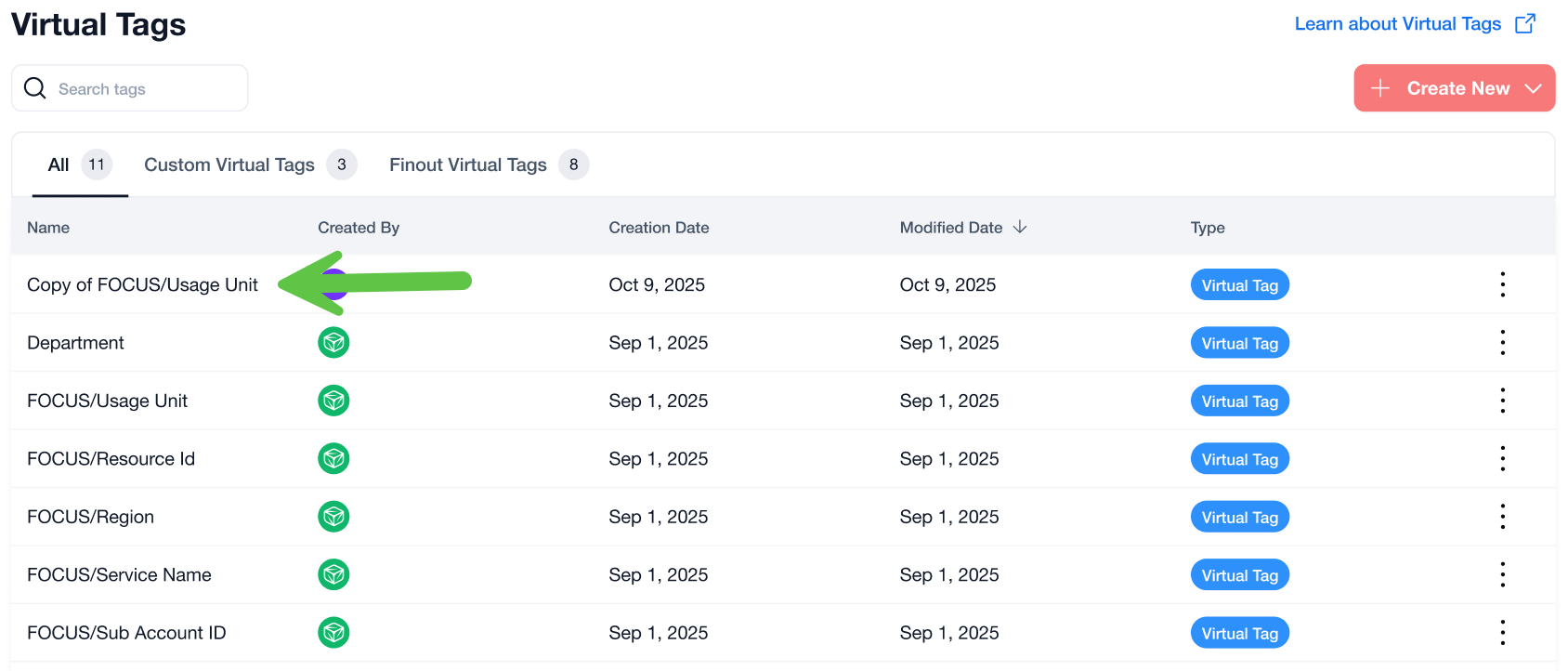
   The virtual tag is duplicated.
4. Navigate to **All** or **Custom Virtual Tags**.<br>

   <figure><img src="/files/NbxMkKJjMOVIj0rKZi5O" alt=""><figcaption></figcaption></figure>
5. Click the Copy of the virtual tag to edit and customize the duplicated virtual tag. See [Edit Custom Virtual Tags](#h_c1128142c3) for more information.

## FAQs

**What are Finout virtual tags?**\
Finout Virtual Tags are out-of-the-box predefined virtual tags created and maintained by Finout. They provide ready-made dimensions for common analysis scenarios, so you can start slicing and querying your data in MegaBill without defining complex tagging rules yourself.

**How can I use Finout predefined virtual tags?**

You can use Finout’s virtual tags like any other dimension to include or exclude costs, break down spend, and build consistent cross-cloud views. They’re available anywhere you filter or group data, and appear under the **Global** tab in filter and group-by

**Are predefined virtual tags automatically available in every account?**\
Yes. When a new Finout account is created, all predefined virtual tags are added automatically and appear under the **Finout Virtual Tags** tab on the Virtual Tags page. As you onboard Cost Centers, you can immediately use these tags in MegaBill and other views, and the results will reflect only the data from Cost Centers that are actually connected.

**Can I edit or change a predefined virtual tag directly?**\
No. Predefined virtual tags are read-only. You can open them to review their rules and configuration, but you can’t modify them in place. If you need to adjust the logic, clone the Finout Virtual Tag to create a Custom Virtual Tag, and then edit that copy.

**Can predefined virtual tags break if some billing fields or keys are missing?**\
No. The tag itself doesn’t break, but the output may be partial or empty. Predefined virtual tags only return data for records that match their rules. If specific Cost Centers are missing the fields or values that those rules rely on, those costs won’t appear in that tagged view.

**Do predefined virtual tags show data for all my clouds and Cost Centers automatically?**\
No. Predefined virtual tags only surface data from Cost Centers that have been onboarded and contain matching records. If a tag references a provider or service that isn’t connected, you’ll either see partial data or no data at all in the table or graph.


---

# Agent Instructions: Querying This Documentation

If you need additional information that is not directly available in this page, you can query the documentation dynamically by asking a question.

Perform an HTTP GET request on the current page URL with the `ask` query parameter:

```
GET https://docs.finout.io/user-guide/inform/virtual-tags/finout-virtual-tags.md?ask=<question>
```

The question should be specific, self-contained, and written in natural language.
The response will contain a direct answer to the question and relevant excerpts and sources from the documentation.

Use this mechanism when the answer is not explicitly present in the current page, you need clarification or additional context, or you want to retrieve related documentation sections.