Manage Virtual Tags

Managing Virtual Tags allows you to edit, delete, and duplicate virtual tags to better organize and optimize your cloud cost allocation in Finout.

Edit Custom Virtual Tags

circle-info

Note: You can only edit custom virtual tags.

  1. Navigate to Virtual Tags.

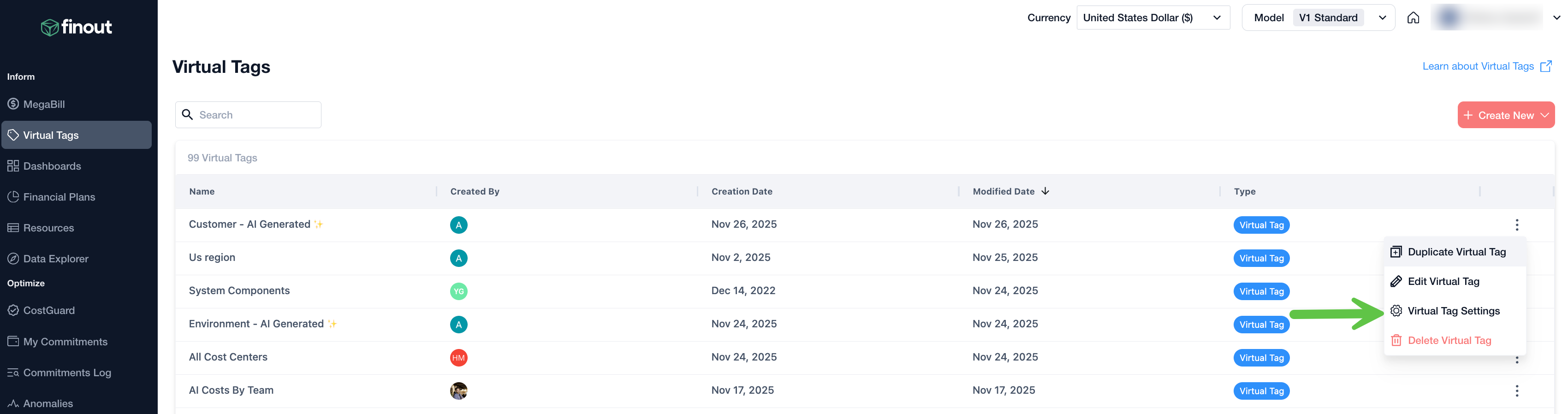
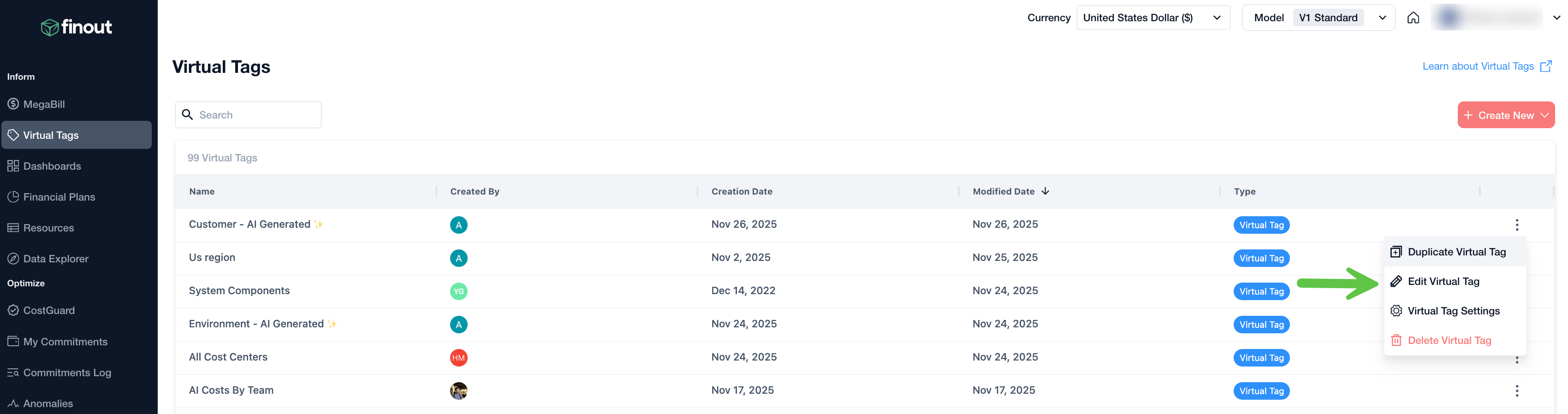
  2. Click on the Virtual Tag you want to edit from the list and then click Edit Virtual Tag. The Edit virtual tag screen opens.

  3. Edit Virtual Tag rules: Click on the rule you want to change.

  4. In the Where option, you can change the criteria using the Filter keys dropdown to select different filter types, such as tags or labels, and modify the logical operators as needed.

    • Adjust the cloud environments by selecting or deselecting them.

    • In the Then section, update the tag value that will be assigned when the rule's conditions are met.

    • Add or Delete Rules using the + Add rule button to include new segmentation rules or the button to remove an existing rule.

      circle-info

      Note: The number of rules allowed in a virtual tag is 50.
    • Adjust the rule order as desired using the Move rule function, which allows you to change their ranking, since the rules are applied from top to bottom.

  5. Additional edits:

    • Adjust the time frame.

    • Edit the values for the untagged costs.

    • Set up notifications for changes.

  6. Filter by conditions: Utilize the filter values dropdown options to narrow down your Virtual Tag based on specific chosen filters. This is particularly useful when the created Virtual Tag has many rules. Instead of manually searching for the specific item to edit within the Virtual Tag, you can use the filters option to drill down and easily find what you need to edit.

    Filter types:

    • Virtual Tag values: Filter based on the names assigned to the rule in the "Then" section.

    • Filter keys: Filter based on the keys chosen in your Virtual Tag.

    • Filter values: Filter based on the exact values that trigger the rule.

Delete Custom Virtual Tags

circle-info

Note: You can only delete custom virtual tags.

  1. Navigate to Virtual Tags.

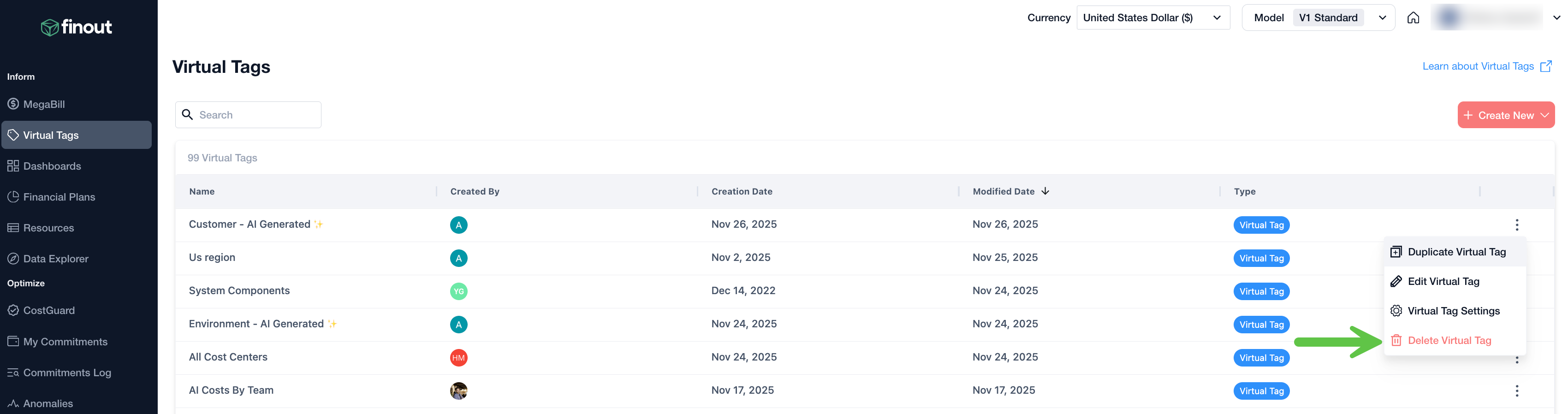
  2. Click on the Virtual Tag you want to edit from the list and then click Delete Virtual Tag.

  3. Click Delete. The virtual tag is deleted.

Duplicate Custom Virtual Tags

  1. Navigate to Virtual Tags.

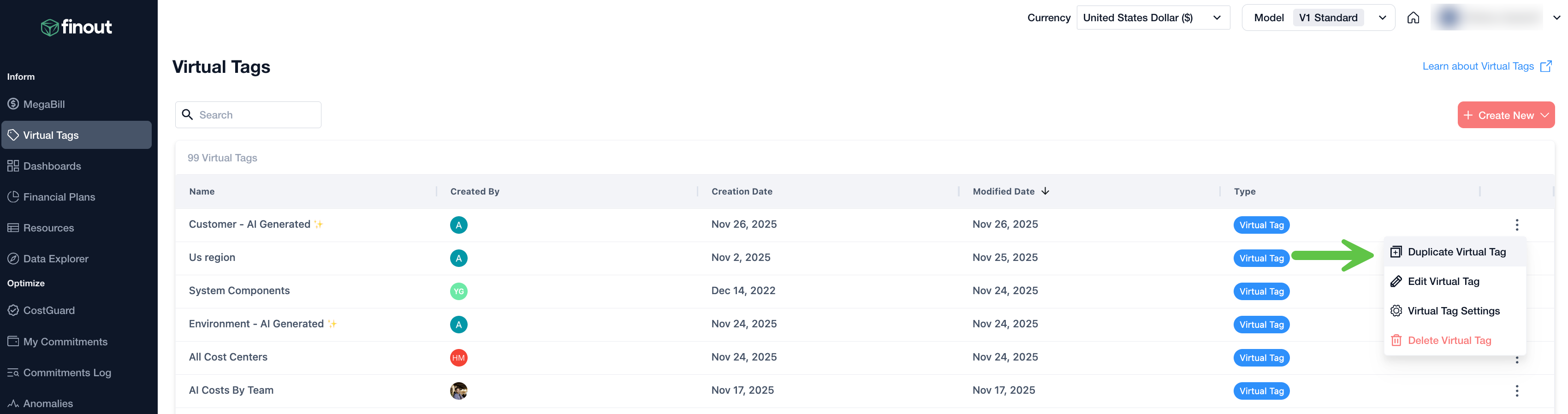
  2. Click on the Virtual Tag you want to edit from the list and then click Duplicate Virtual Tag. The virtual tag is duplicated.

Duplicate Finout Virtual Tags for Customization

Finout virtual tags can’t be edited directly. To make changes, you’ll need to duplicate the virtual tag and edit the duplicated version.

circle-info

Note: Any future changes made to the original Finout Virtual Tag will not be applied to your duplicated version.

  1. In Finout, navigate to Virtual Tags.

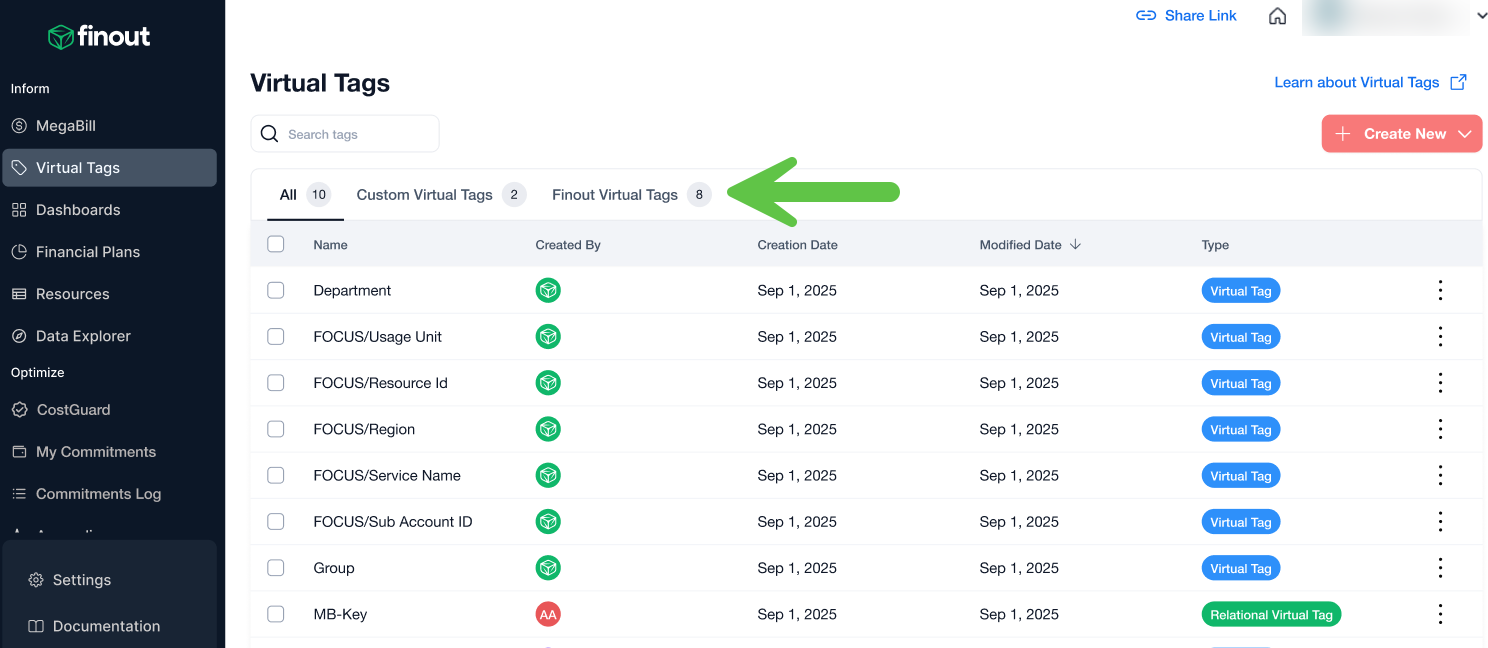
  2. Click the Finout Virtual Tags tab.

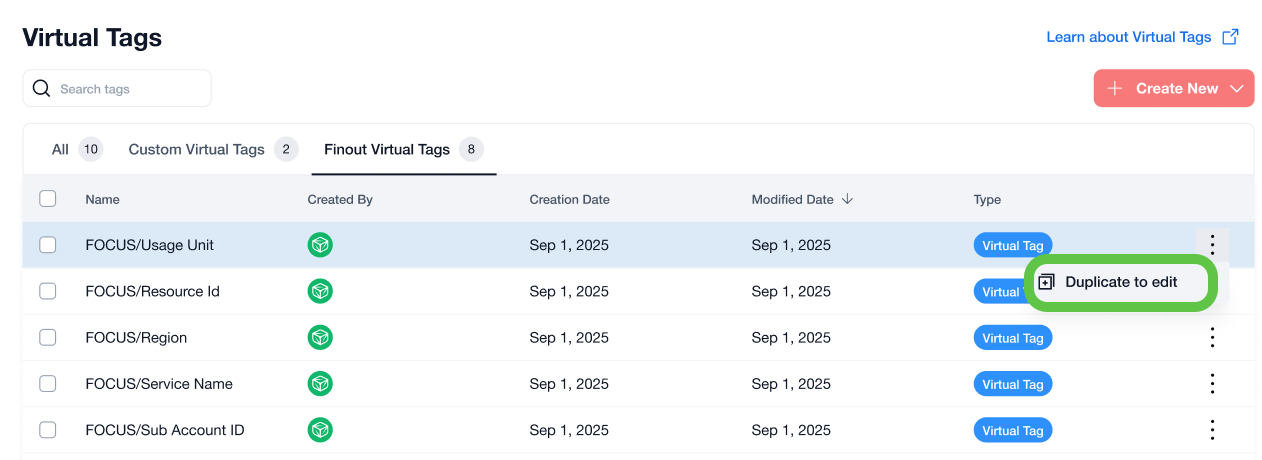
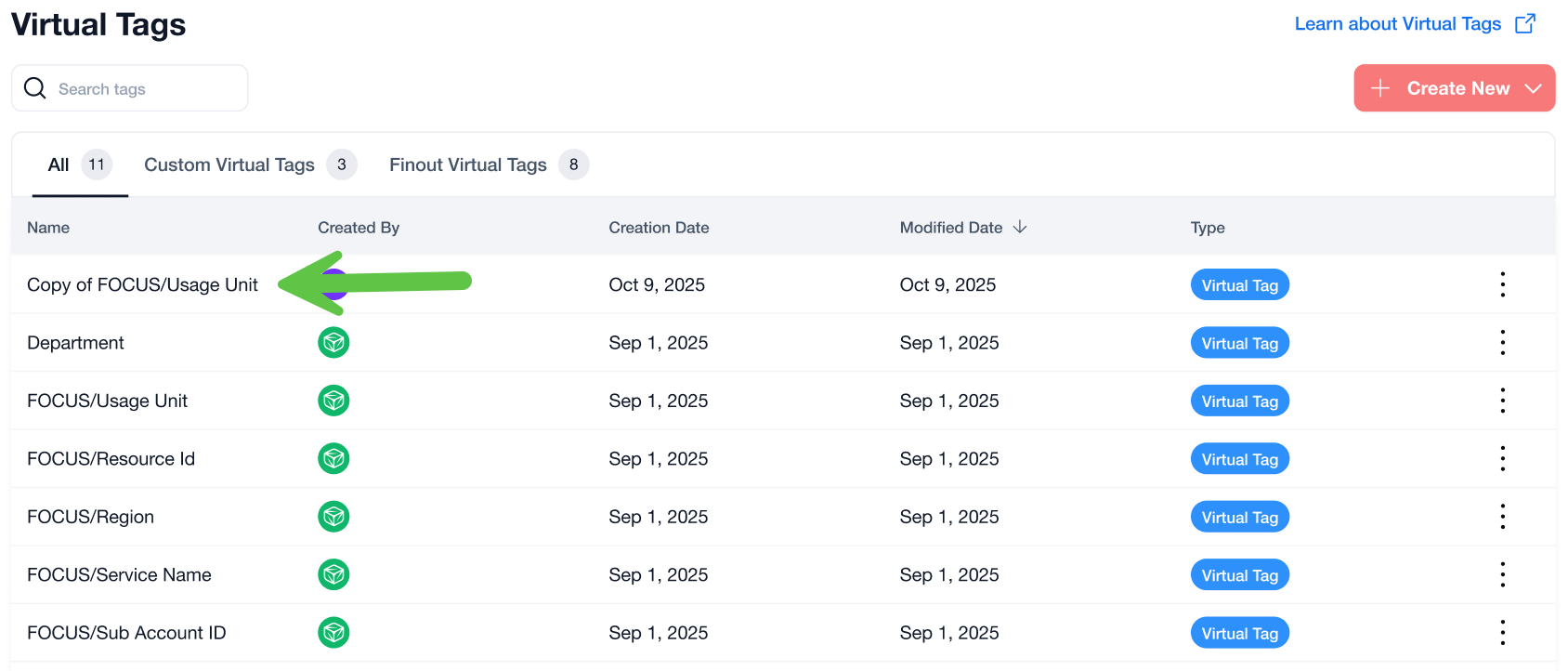
  3. Click and then click Duplicate to edit. The virtual tag is duplicated.

  4. Navigate to All or Custom Virtual Tags.

  5. Click the Copy of the virtual tag to edit and customize the duplicated virtual tag. See Edit Custom Virtual Tags for more information.

Open Multiple Virtual Tags

circle-info

Note: This applies only to all virtual tags.

You can open a virtual tags in a new browser tab directly from the virtual tags list. Right-click the virtual tags and select Open in New Tab, or use:

  • Command + Click on macOS

  • Ctrl + Click on Windows or Linux

This allows you to compare multiple virtual tags side by side or keep several virtual tags open at the same time.

Virtual Tag Settings

circle-info

Note: This applies only to custom virtual tags.

  1. Navigate to Virtual tags.

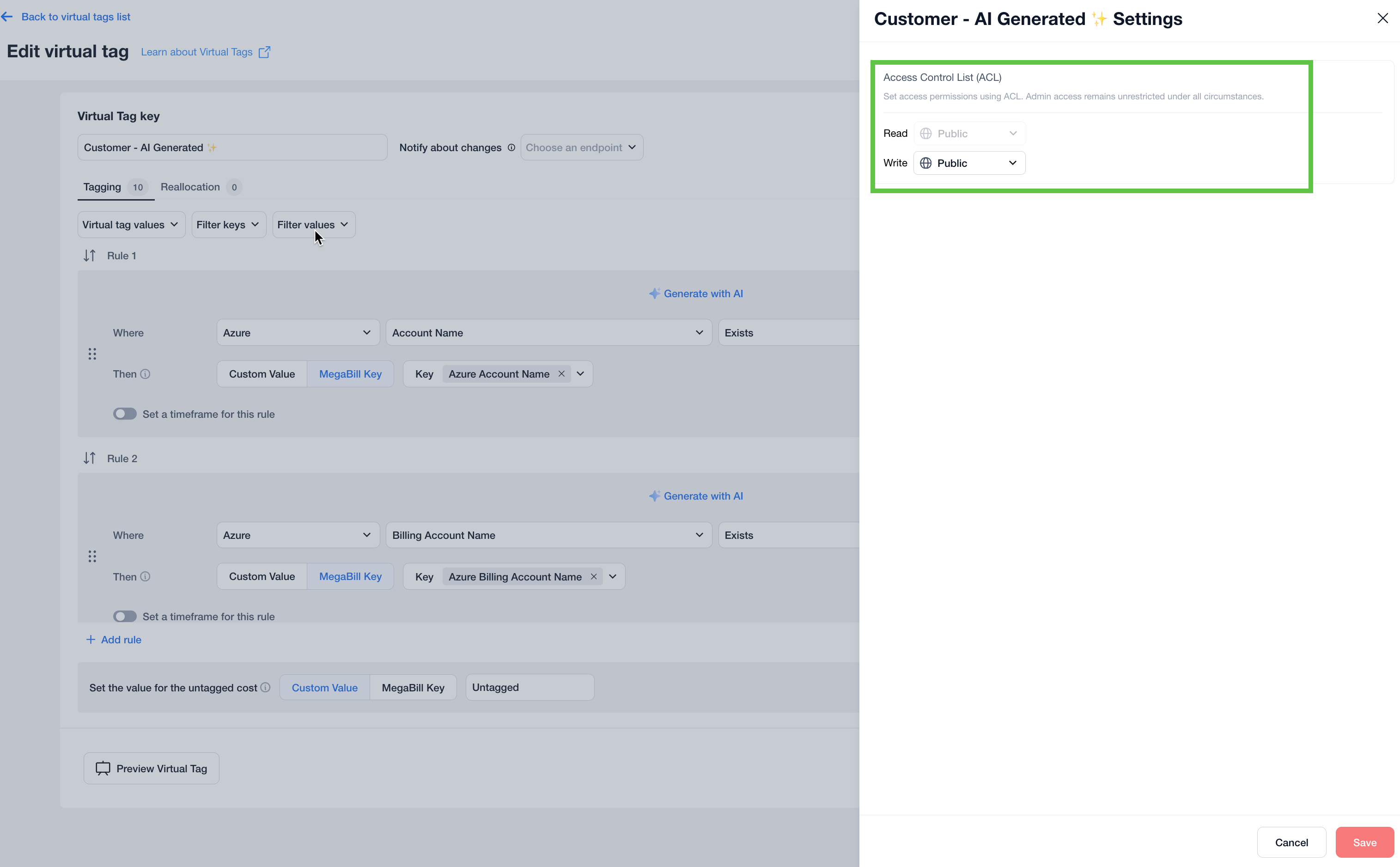
  2. Click on the Virtual Tag you want to set ACL permissions and then click Virtual Tag Settings. The Settings side window opens.

  3. ACL permissions:

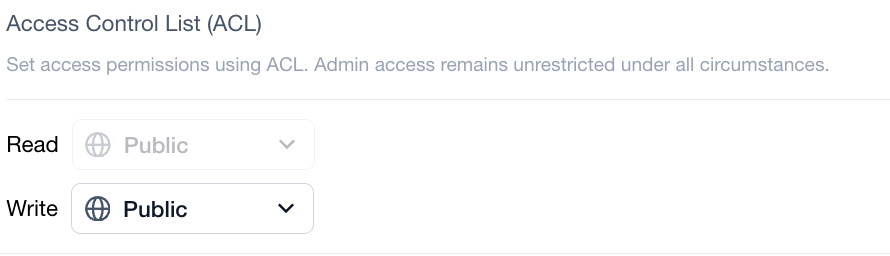
    Read permissions are always public for virtual tags, but you can set write permissions as either Public, Private, and Shared. Permission for an object is granted if a user or group have a role with the proper permission and also ACL permission to access the object. By default, the write permissions are set according ot the account default, but users can change it to view or modify an object if they have Role-Based Access Control (RBAC) to read or write the object.

    circle-info

    Note:

    • Virtual tags are always public for read purposes, allowing all users in the account to utilize them for filtering and grouping, as well as view their configuration. However, only users with the appropriate write ACL permissions can edit a virtual tag’s configuration.

    • Write access follows the account-level default but can be modified as needed.

    • Types of ACL Permissions:

      • Public: Grants access to anyone in the organization that has Role-Based Access Control (RBAC).

      • Private: Restricts access to admins and the user who created the object.

      • Shared: Limits access to specific users or groups that have Role-Based Access Control (RBAC).

        circle-info

        Note: Admins and creators always retain access.

Last updated

Was this helpful?