> For the complete documentation index, see [llms.txt](https://docs.finout.io/llms.txt). Markdown versions of documentation pages are available by appending `.md` to page URLs; this page is available as [Markdown](https://docs.finout.io/user-guide/inform/virtual-tags/ai-virtual-tags-alpha.md).
# AI Virtual Tags (Alpha)
## Overview
AI Virtual Tags scan names, labels, namespaces, accounts, projects, and metadata across your connected systems and turn them into clear, explainable allocation rules. You approve, tweak, or extend the rules in one click, and every line item—past and future - is instantly allocated to the right team, product, or environment. What used to take weeks of tagging projects now takes minutes.
FinOps teams spend months writing tagging policies, chasing engineers, and rebuilding allocation models every time the org changes. AI Virtual Tags flip this model: they learn from your real usage and organizational data, auto-generate hundreds of Virtual Tag rules, and keep your allocation aligned with how the business is actually structured. You stop wrestling with tags and spreadsheets, and start making decisions on fully allocated, trustworthy cost data.
{% hint style="info" %}
**Note**: AI never uses customer data for model training, and all processing stays securely isolated within your workspace.
{% endhint %}
* **Automated Cost Allocation**:
* Replaces manual tagging projects with AI-generated Virtual Tag rules.
* Handles edge cases with an AI Rule Builder - describe the change in plain language and Finout generates the rule for you.
* **Real-Time Allocation**:
* Approved rules apply instantly and retroactively to historical spend.
* Every new line item is allocated the moment it hits your bill - no batch jobs, no overnight pipelines.
* Change logic or ownership and see allocation updates immediately.
* **Clear, Explainable AI**:
* AI proposes Virtual Tag rules based on real usage patterns across names, labels, namespaces, accounts, projects, and metadata.
* You can approve, edit, or reject suggestions individually or in bulk.
* Every rule is transparent and auditable, so Finance and Engineering can trust the numbers.
* **Automatic, End-to-End Coverage for Every Bill**:
* Connect AWS, GCP, Azure, and other cloud bills—no agents, no tagging projects.
* Ingest Kubernetes usage down to cluster, namespace, and workload level.
* Bring in Snowflake, Datadog, and other SaaS and data tools, plus internal chargeback data and custom sources.
* Achieve near-100% allocation across all providers from day one.
#### **Prerequisites**
AI in Finout requires two prerequisites:
1. **Admin:** An Admin must [opt in to AI Services](/cross-platform-features/list-of-cross-platform-features/ai-in-finout/ai-opt-in.md) for the workspace.
* Performed in **Settings → Compliance & Privacy → AI Services**. See AI Opt in for more information.
* Opt-in to enable AI capabilities across the entire account.
* Recorded in the audit log.\
AI Opt-In - Finout Docs
2. **User: An Admin must enable** [**AI permissions** ](/settings/role-based-access-control-rbac.md)
* Certain AI-powered features require feature-specific activation for your users.
* Admins maintain full control over enabling and disabling these capabilities.
## Create an AI Virtual Tag
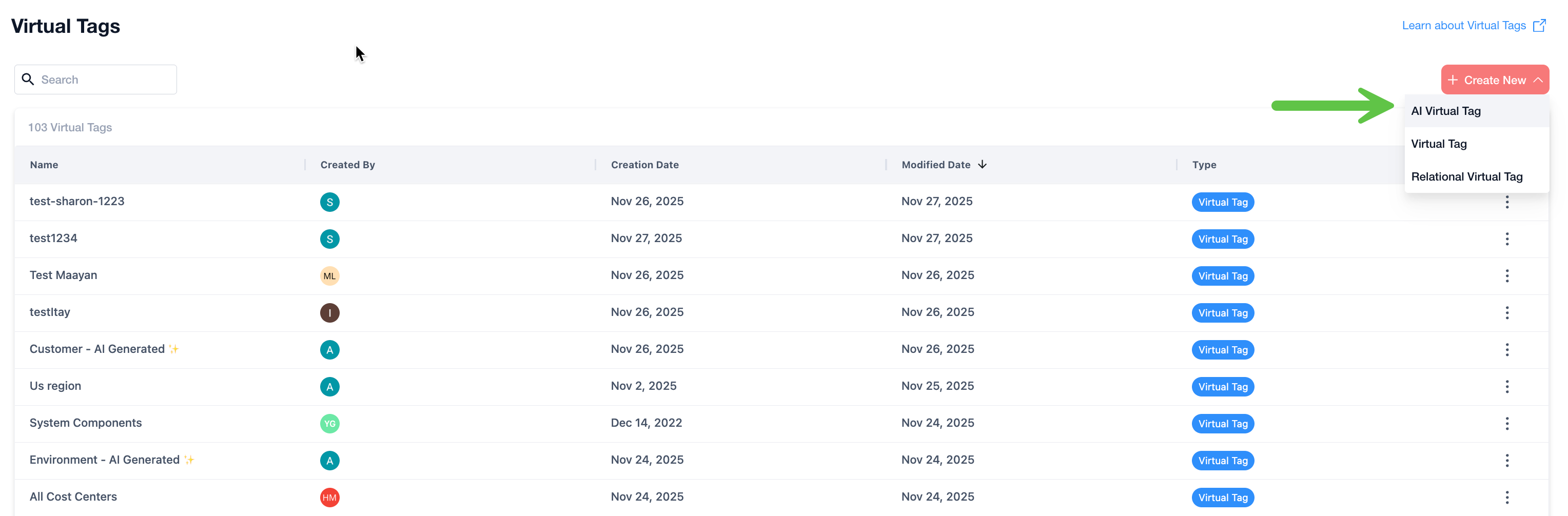
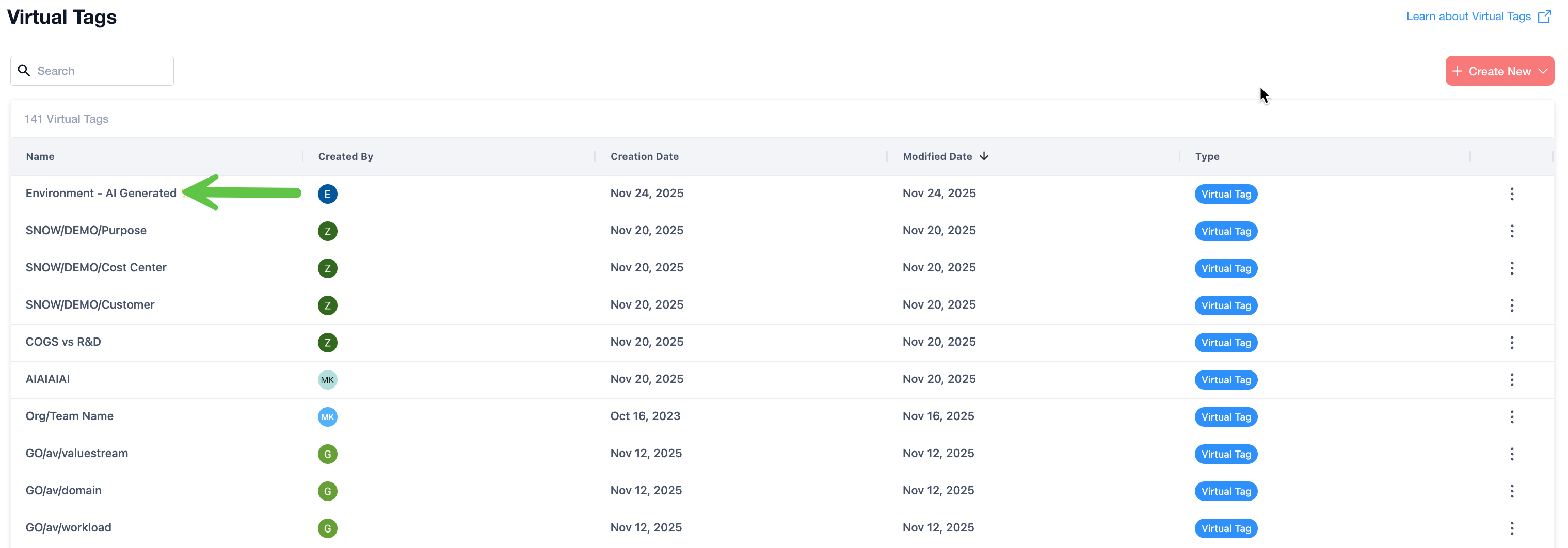
1. In Finout, navigate to **Virtual Tags**.
2. Click **Create New** and then **AI Virtual Tag.** \
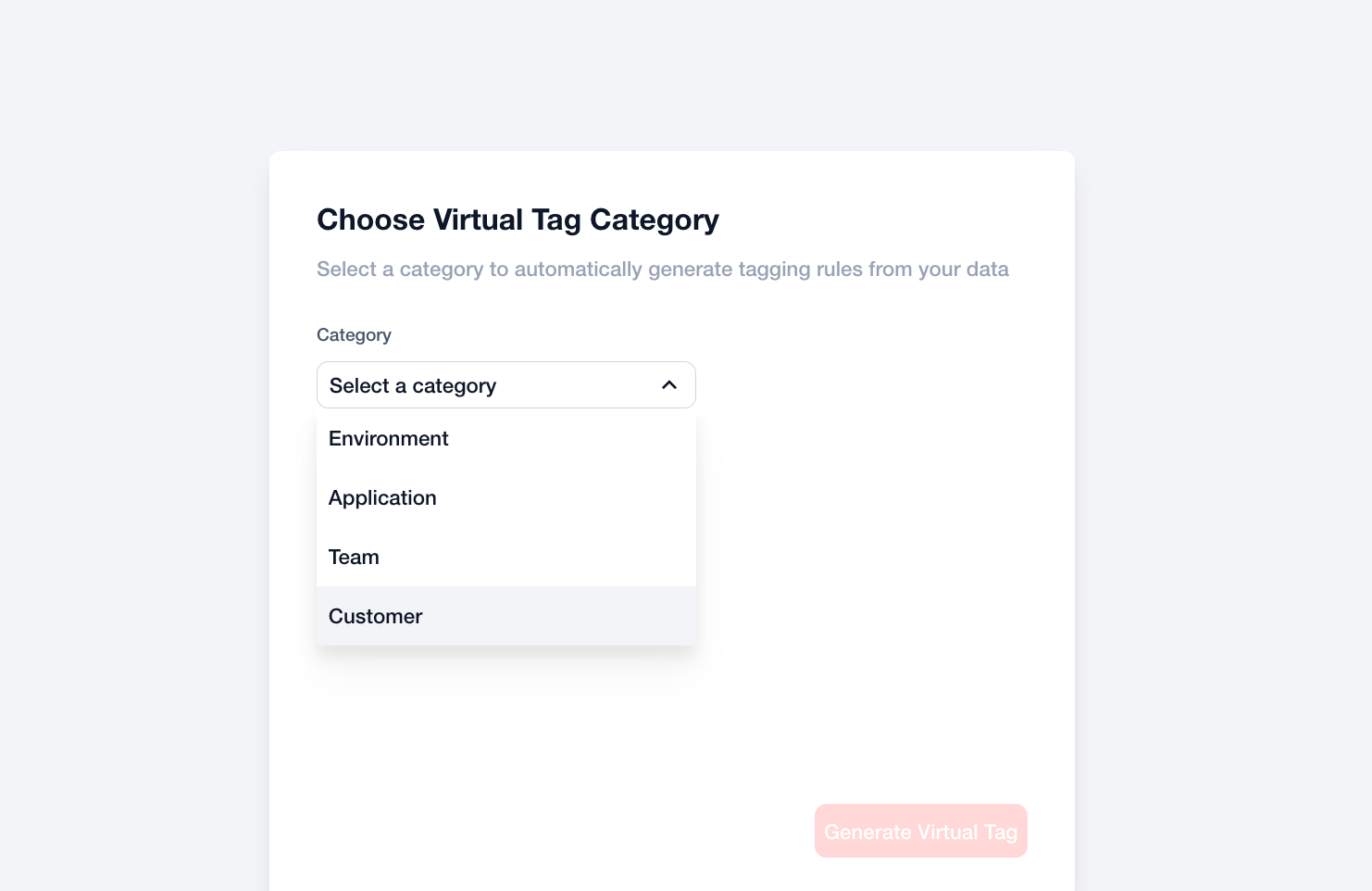
The **Choose Virtual Tag Category** step appears.
3. Select a **Category** and then click **Generate Virtual Tag**.
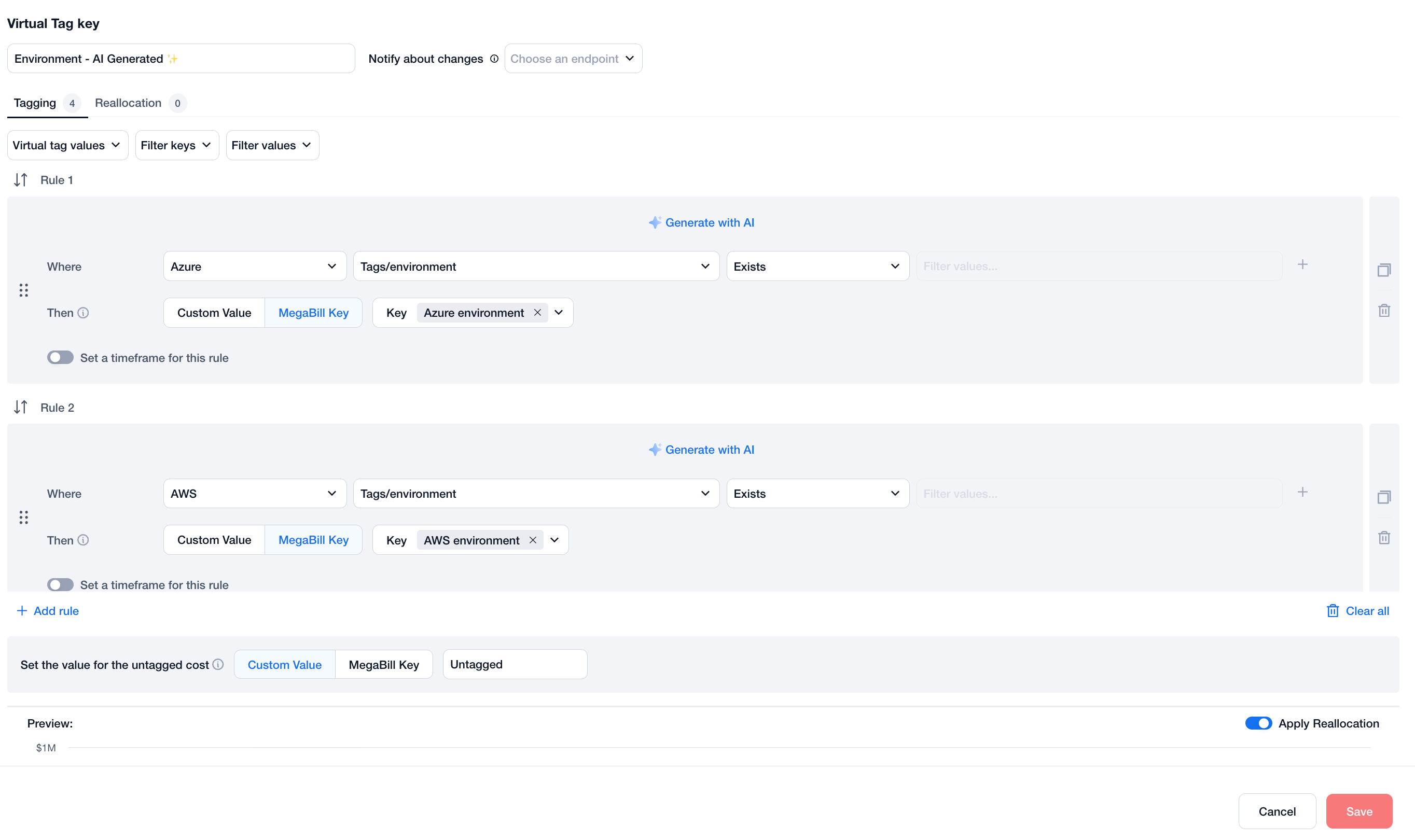
4. Review the AI-generated virtual tag, make any desired changes, and then click **Save**.
\
**Result**: The AI virtual tag is created and appears in the list of virtual tags. Once the AI virtual tag is created, it behaves like any other virtual tag and can be [managed](/user-guide/inform/virtual-tags/custom-virtual-tags.md#h_c1128142c3) in the same way.
## Create an AI Virtual Tag Rule
This can be used for an **existing virtual tag** or a **new virtual tag**.
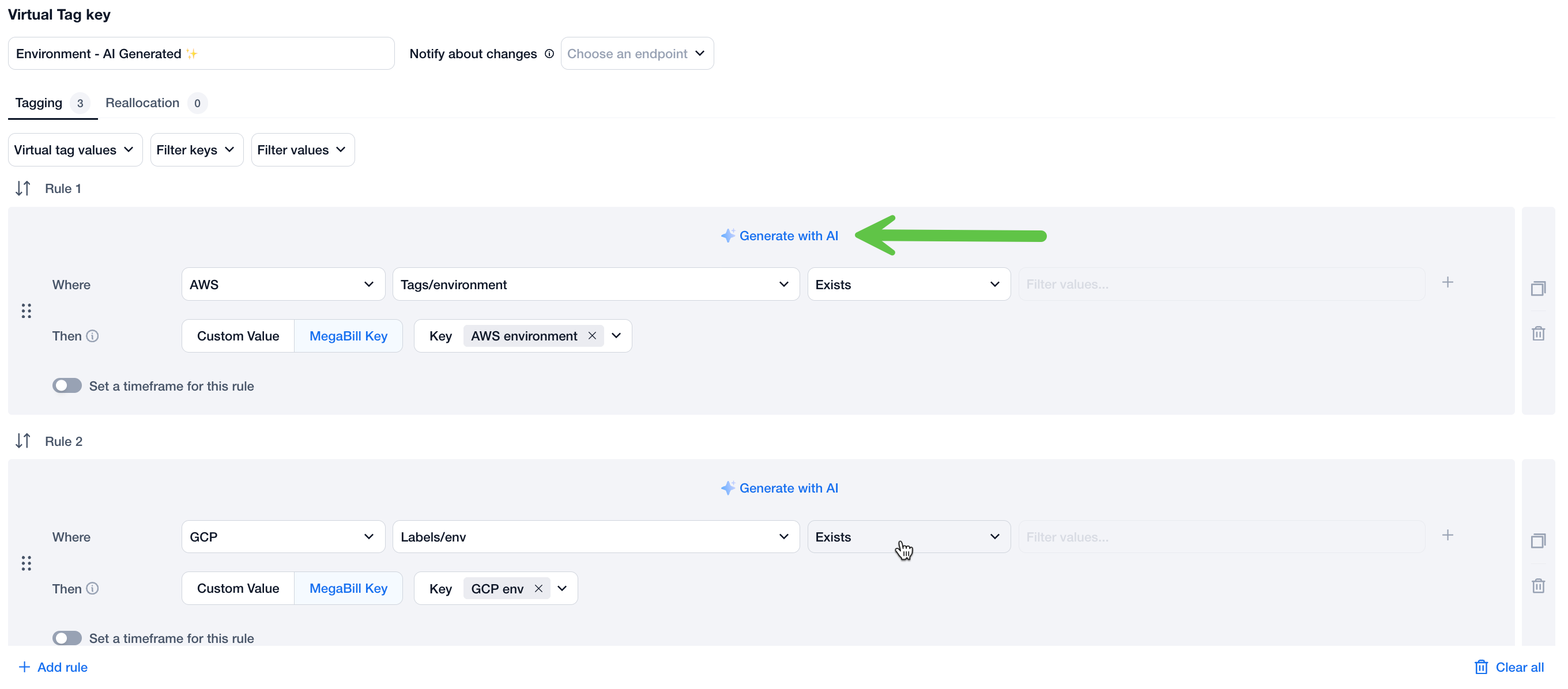
1. In a virtual tag, click **Generate with AI** under a specific rule.
Note: This can be used for any new virtual tag or existing virtual tag.
The free text-box appears.
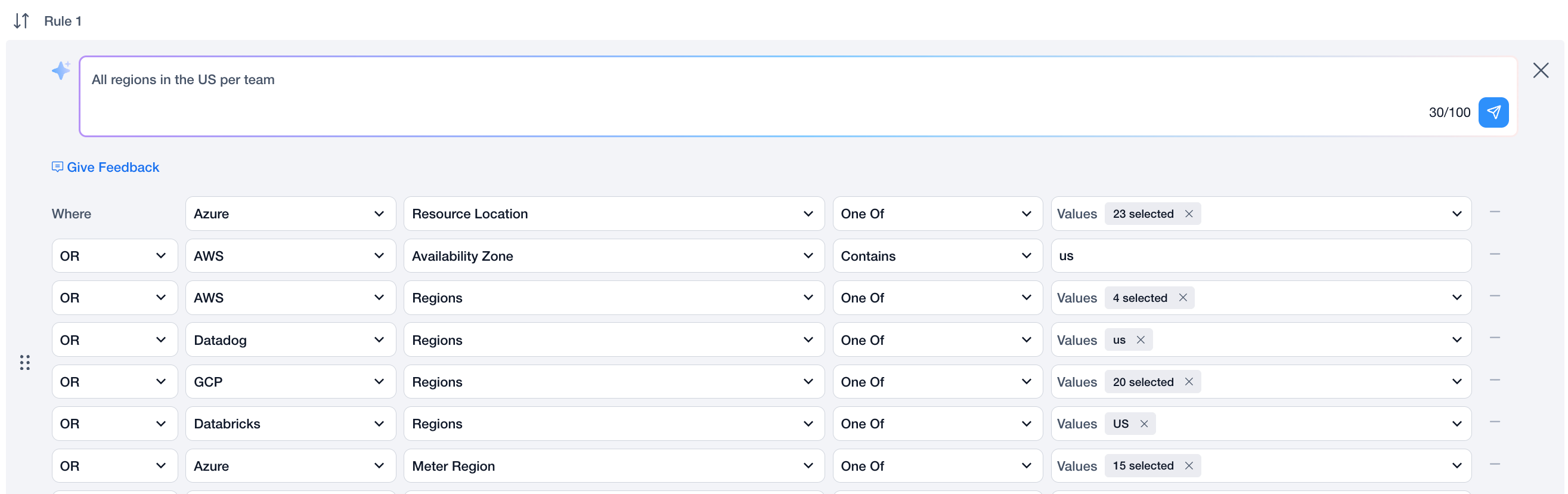
2. Write what you want the rule to be, for example "All regions in the US per team" and click .\
The virtual tag rule is created.
3. Continue to create or edit the virtual tag and click **Save**.
## FAQs
**Which Virtual Tag categories are supported?**\
The current version supports a closed list of categories: **Environment, Application, Team, and Customer.**
**What data does Base Virtual Tag Assist use to build virtual tags?**\
The feature utilizes only native keys from your cost data. It does not use existing Virtual Tags as inputs.
**Can I change or remove the suggested rules?**\
Yes. You can edit individual rules, reorder them by priority, and remove any irrelevant rules before finalizing the Virtual Tag.
---
# Agent Instructions
This documentation is published with GitBook. GitBook is the documentation platform designed so that both humans and AI agents can read, navigate, and reason over technical content effectively. Learn more at gitbook.com.
## Querying This Documentation
If you need additional information that is not directly available in this page, you can query the documentation by asking a question.
Perform an HTTP GET request on the following URL with the `ask` and `goal` query parameters:
```
GET https://docs.finout.io/user-guide/inform/virtual-tags/ai-virtual-tags-alpha.md?ask=&goal=
```
`ask` is the immediate question: it should be specific, self-contained, and written in natural language.
`goal` is what the user is ultimately trying to achieve, the reason they need the answer. Sharing it helps GitBook give you a better, more relevant answer. A goal is most helpful when it describes the outcome the user wants rather than restating the question. For example, with `ask=how do I create an API token`, a goal like `automate deployments from our CI pipeline` lets GitBook tailor the answer to that use case.
The response will contain a direct answer to the question and relevant excerpts and sources from the documentation.
Use this mechanism when the answer is not explicitly present in the current page, you need clarification or additional context, or you want to retrieve related documentation sections.

 .\
The virtual tag rule is created.
.\
The virtual tag rule is created.